

A Base64 data URL embeds bytes directly inside a document using the pattern data:[<mediatype>][;base64],<data>, no separate HTTP request required. You will see it most often in an <img src>, a CSS background-image, or an SVG href. The ;base64 token simply tells the browser the payload after the comma is Base64-encoded binary rather than plain text.
TL;DR:
- Use standard Base64 characters, with plus and slash rather than hyphen and underscore, or browsers may decode the payload incorrectly.
- Keep data URLs for small, single use assets; Base64 adds about 33% to file size, and inline content cannot be cached separately across pages.
- Use the format data:[mime];base64, and set the MIME type manually when detection seems wrong; omitted types default to plain text.
- Test embedded strings in browser devtools and decode them back to bytes; this catches malformed characters or whitespace before production.
Table of Contents
- How to convert a file or Base64 string into a data URL
- HTML, CSS, and SVG: copy-paste examples
- MIME type, the ;base64 flag, and Base64 variant pitfalls
- Size limits, performance, and when to use data URLs
- Fixing broken data URLs: common errors and quick checks
- Rules I follow for using data URLs in production
- Encode, decode, and validate your data URLs with Pingfloat
- FAQ
- Sources
- Core protocol and reference links
How to convert a file or Base64 string into a data URL
Building a working data URL takes four steps, whether you start from an image file or from raw Base64 text you already have.
- Obtain or generate the Base64 payload from your source file.
- Determine the correct MIME type (
image/png,image/svg+xml,font/woff2, and so on). - Assemble the string as
data:[mime];base64,<payload>with no spaces. - Paste the result into an HTML attribute or a CSS declaration.
On macOS or Linux, the fastest route is the built-in base64 utility: base64 -i icon.png -o icon.txt produces the encoded text, which you then prepend with data:image/png;base64,. On Windows, PowerShell offers the same result with [Convert]::ToBase64String([IO.File]::ReadAllBytes("icon.png")).
In Node.js, a one-liner does the whole job: `data:image/png;base64,${Buffer.from(fs.readFileSync('icon.png')).toString('base64')}`. That single expression reads the file, encodes it, and wraps it in the correct syntax in one pass.
Browser-based converters and many online tools detect the MIME type automatically from the file's signature, but detection is not infallible. When a browser renders the wrong format or shows a broken image icon, set the mediatype manually rather than trusting auto-detection, especially for less common formats like WebP or AVIF.
HTML, CSS, and SVG: copy-paste examples
Each context expects the same data: syntax, but placement and escaping differ slightly.
- HTML image:
<img src="data:image/png;base64,iVBORw0KGgo..." width="32" height="32" alt="icon">renders exactly like a linked file, with no separate request. - CSS background:
.icon { background-image: url(data:image/png;base64,iVBORw0KGgo...); }works inline or in an external stylesheet, with no quotes required around the data URL insideurl(). - SVG embedding:
<image href="data:image/png;base64,iVBORw0KGgo..." width="24" height="24"/>follows the same pattern, but since SVG is XML, any literal ampersands or angle brackets in surrounding markup need standard XML escaping even though the Base64 payload itself is safe. - Quick preview: paste the full string into a browser address bar or an empty
<img>tag in devtools to confirm it renders before committing it to source code.
MIME type, the ;base64 flag, and Base64 variant pitfalls
The mediatype segment tells the browser what kind of data follows: image/png, text/plain, application/json, and so on. When you omit it, the MDN data URL reference notes the default is treated as text/plain;charset=US-ASCII, which is rarely what you want for binary content.
The ;base64 flag exists because raw binary data cannot sit safely inside a URL as plain text. Rather than percent-encoding every byte, which would bloat the string and complicate parsing, the scheme encodes the payload as Base64 and flags it so the browser knows to decode it before use.

A frequent source of broken images is mixing up Base64 variants. Data URLs expect standard Base64, the version that uses + and / as its 62nd and 63rd characters. URL-safe Base64 swaps those for - and _, a variant built for use inside query strings and file names, not for data: payloads. Because the data: scheme does not parse its payload as a URL path or query, standard Base64 works correctly and URL-safe substitution will produce garbage when decoded. The formal rules live in RFC 2397, which defines the scheme's exact grammar.
Size limits, performance, and when to use data URLs
Base64 encoding inflates payload size by a significant overhead compared to the original binary, according to the Data URI scheme overview on Wikipedia. That overhead matters because every byte travels with the surrounding HTML or CSS on every page load.
Inlining also removes the resource from the browser's independent cache. A logo embedded as a data URL gets re-downloaded with every page that references it, while the same logo linked as a separate file gets cached once and reused. For a deeper look at the trade-offs, our guide to Base64 overhead walks through the math.
Data URLs earn their keep for small, single-use assets: tiny icons, spinners, or a self-contained HTML export that needs to work with no external files. For anything larger than a few kilobytes, or any asset reused across multiple pages, a linked file almost always performs better.
Fixing broken data URLs: common errors and quick checks
Most broken data URLs trace back to one of a handful of mistakes, and each has a fast fix.
- Check for a single comma separating the mediatype section from the payload: a missing or duplicated comma breaks parsing silently.
- Scan for stray whitespace or line breaks inside the Base64 string, since many editors wrap long lines and introduce invisible characters.
- Confirm every character belongs to standard Base64; a
-or_instead of+or/signals a URL-safe variant mismatch. - Open browser devtools and inspect the rendered element: a broken image icon with no console error usually means a syntax problem rather than a missing file.
- Decode the string back to a file using a local tool to confirm the bytes match the original image or document.
Pro Tip: Run every hand-typed or copy-pasted data URL through a decoder before shipping it, since browsers fail silently on bad syntax and give you no error message to debug from.
Our Base64 encoder and decoder handles that validation step directly, flagging invalid characters and letting you decode a suspect string back to its original bytes for inspection.
Rules I follow for using data URLs in production
Larger assets belong in a separate file where caching does its job.
Test every embedded string in devtools before merging it, and keep the original image file in source control rather than treating the Base64 blob as the canonical asset. For a closer look at common conversion mistakes, our guide to data URI images covers five practical methods and where each one tends to go wrong.
— Andreas
Encode, decode, and validate your data URLs with Pingfloat
Building a correct data URL by hand gets tedious once you factor in MIME detection, Base64 variants, and stray whitespace, so we built a Base64 encoder and decoder that handles the conversion and lets you check the result before it goes anywhere near production code.
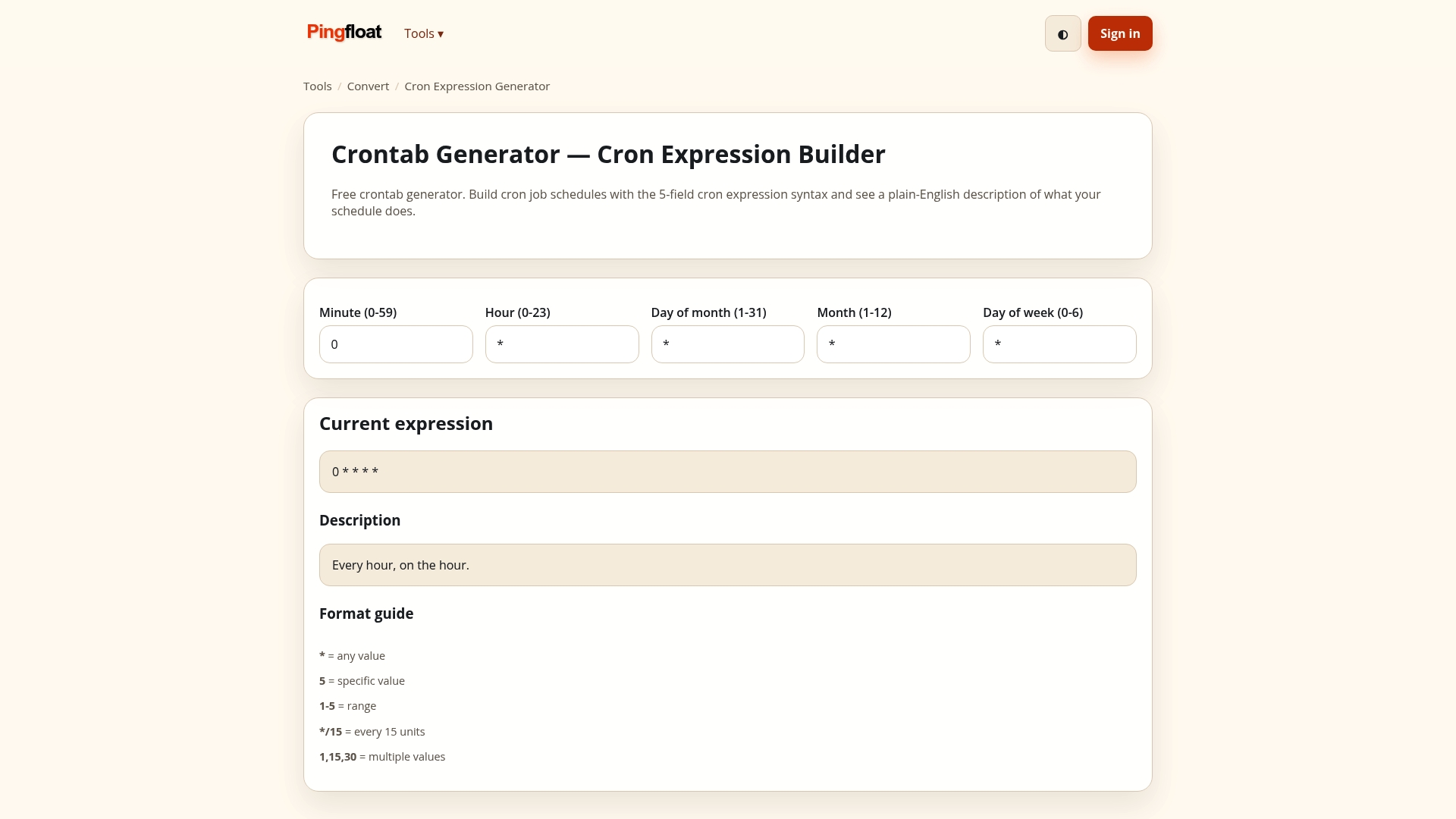
Paste in a file or a raw Base64 string, confirm the MIME type matches what your browser expects, and decode the output back to bytes to verify nothing got corrupted along the way. If your workflow involves checking variant mismatches across a larger codebase, our guide to fixing Base64 variant issues walks through the patterns that cause the most silent failures.
When an asset turns out too large to inline sensibly, our file sharing and secure transfer tool gives you a hosted alternative with no need to bloat your HTML. Start with the Base64 tool and see your encoded output in seconds.

FAQ
What does the ;base64 part of a data URL mean?
The ;base64 token tells the browser that the text after the comma is Base64-encoded binary data rather than plain, readable text. Without it, the browser treats the payload as literal characters, which breaks for images, fonts, or any non-text file, as described in the MDN data URL reference.
How do I convert an image to a Base64 data URL?
Run the image through a Base64 encoder, such as the base64 command on macOS and Linux, PowerShell's Convert]::ToBase64String on Windows, or a browser-based tool, then prepend data:<mimetype>;base64, to the result. Our [Base64 encoder and decoder does this in one step and lets you copy the finished string directly.
Is there a size limit for data URLs?
The formal specification in RFC 2397 recommends data URLs for short values rather than defining a hard byte limit, though browsers do enforce their own practical ceilings. Base64 encoding adds about 33% overhead to the original file size, so most developers reserve data URLs for small assets like icons rather than full-size images.
Can I use URL-safe Base64 in a data URL?
Standard Base64, the variant using + and /, is the correct format for data URLs, and URL-safe Base64 substitutes those characters for - and _. Using the URL-safe variant inside a data: payload will produce an invalid or corrupted result when the browser decodes it.
Why does my embedded image show a broken icon with no error?
Browsers fail silently on malformed data URLs, so a missing comma, stray whitespace, or an invalid Base64 character typically produces a broken image icon with nothing in the console. Decoding the string with a validation tool, such as our Base64 decoder, quickly reveals whether the payload is intact before you spend time debugging the markup.
Sources
Core protocol and reference links
For syntax-level detail beyond this guide, these cover the formal and practical sides of the scheme.
- RFC 2397: the original specification defining data URL syntax.
- MDN data URL reference: browser-oriented usage and examples.
- Data URI scheme on Wikipedia: a concise overview of encoding overhead and trade-offs.