

Yes, you can share files that stop working after a set time or a single download, and most major platforms already support it. For sensitive material, identity-bound access you can revoke beats any anyone-with-the-link URL. For quick, low-stakes transfers, an expiring or one-time link is usually enough. This guide covers both, with platform steps and the security checks worth running before you hit send.
TL;DR:
- Expiring links allow file access until a set time or download limit is reached, but downloaded files may remain accessible locally after expiry.
- Identity-bound shares tie access to specific accounts, enabling instant revocation regardless of expiration timers.
- Platform-specific steps include setting expiration via sharing dialogs in Google Drive, OneDrive, or transfer services, with verification in private browsing.
- Use identity-bound sharing for sensitive, regulated, or audit-required scenarios, and reserve expiring links for quick, one-time delivery to recipients without accounts.
- Regularly audit shared links, set expiration dates at creation, and avoid defaulting to broad "anyone with the link" sharing to prevent governance drift.
Table of Contents
- How expiring links and identity-bound expiration work
- Platform quick steps: setting or changing link expiration
- Security best practices and governance for expiring file links
- When to use expiring links vs identity-based sharing
- Pingfloat perspective: a developer-focused approach to temporary file sharing
- How expiration interacts with different file types and sizes
- Automation tools or scripts to manage expiration for bulk shares
- Legal and compliance considerations related to expired shared files
- Try Pingfloat's file-sharing tools for quick, expiring links
- A few mistakes worth avoiding
- FAQ
- Sources
How expiring links and identity-bound expiration work
An expiring link is a bearer credential: whoever holds the URL gets in, and the platform revokes it after a set time-to-live or a download count. Identity-bound expiration works differently. Access is tied to a named account, so the owner can revoke it at any moment, not just when a timer runs out.
The difference matters because of what happens at the edges. A link's expiration is enforced by the server, but cached pages, browser history, or a file someone already downloaded before expiry can remain accessible locally even after the share itself is dead. NIST's guidance on exchanging files flags that many ad-hoc sharing methods, including passworded archives and plain email attachments, lack the built-in protections that managed transfer tools or encryption provide.
- Expiring link: anyone with the URL can access the file until the TTL or download limit hits.
- Identity-bound share: access is tied to a signed-in account and can be revoked instantly, regardless of any timer.
- Residual risk: a file already opened or downloaded before expiration may still sit on the recipient's device.
Pro Tip: If a file absolutely cannot leak, use identity-bound access with download blocked, not a link with a short timer.
Platform quick steps: setting or changing link expiration
Every major platform handles expiration a little differently. Here's how to set it, change it, and confirm it actually worked.
- Google Drive, Docs, Sheets, and Slides: open the sharing dialog, add the recipient by email under "Share with people," then click the clock icon next to their name to set an access expiration date. "Anyone with the link" shares don't support per-link expiration on personal accounts, so for a hard cutoff, switch to named-recipient sharing instead.
- Microsoft OneDrive and SharePoint: select "Manage access" on the file, choose the existing link, and set or edit the expiration date from there. Microsoft's support documentation notes that some expiration controls require a Microsoft 365 subscription, and free personal accounts have narrower options. To revoke early, delete the link from the same "Manage access" screen.
- WeTransfer and similar transfer services: paid tiers typically let you set a custom transfer expiration window and sometimes a one-time download limit, while free tiers default to a fixed expiration period with no manual override.
- Generic one-time-download hosts: look for an "expire after download" or "burn after reading" toggle at upload time; these services are built around single-use links by default, so there's usually little else to configure.
Before you rely on any of these, run a quick verification pass:
- Create the link or share and note the expiration setting.
- Open it in a private or incognito browser window to confirm access works as expected.
- After expiry, repeat the private-window test to confirm the link is dead.
- Log the share (recipient, file, expiration date) somewhere you can check later.
This last step sounds unnecessary until you're trying to remember, months later, who still has access to a client contract or a set of architectural drawings.
Security best practices and governance for expiring file links
Expiration is a control, not a guarantee, and it works best inside a few consistent habits.
- Apply least privilege: share the smallest set of files, to the fewest people, for the shortest workable period.
- Use identity-bound access for regulated or confidential material, and require sign-in whenever the platform allows it.
- Treat a password on a link as a secondary layer. The Delinea blog on privileged access notes that a password-protected link is still a bearer credential that can be forwarded, password included.
- Prefer view-only and disable downloads when the content doesn't need to leave the platform.
- Audit access logs periodically and review old shares to catch links that outlived their purpose.
CISA's SCuBA guidance recommends secure configuration baselines for cloud apps precisely because default settings tend to allow broader sharing and longer-lived links than most organizations actually need. Relying on defaults is how a single project share turns into a permanent, forgotten door into your files.
Pro Tip: Set the expiration date the moment you create the share, not as a follow-up task. "I'll clean it up later" is how stale links accumulate.
When to use expiring links vs identity-based sharing
The right tool depends on who's receiving the file and how much residual access is acceptable afterward.
- Expiring links: large file handoffs, quick external delivery, or recipients without an account on your platform.
- Identity-based sharing: internal collaboration, regulated data, or contractor work where you need an audit trail of who accessed what and when.
- One-time-download links: final deliverables, invoices, or signed contracts where no lingering access should remain after the first open.
A few concrete cases: sending a client their final video export calls for an expiring link, since they don't need an account and the file is non-sensitive once delivered. A contractor uploading tax documents is better served by identity-bound sharing with a short window and logging. An internal budget review among employees belongs on identity-based permissions tied to your organization's accounts, and a one-off transfer of a large raw media file to a freelance editor is a textbook expiring-link case.
Pingfloat perspective: a developer-focused approach to temporary file sharing
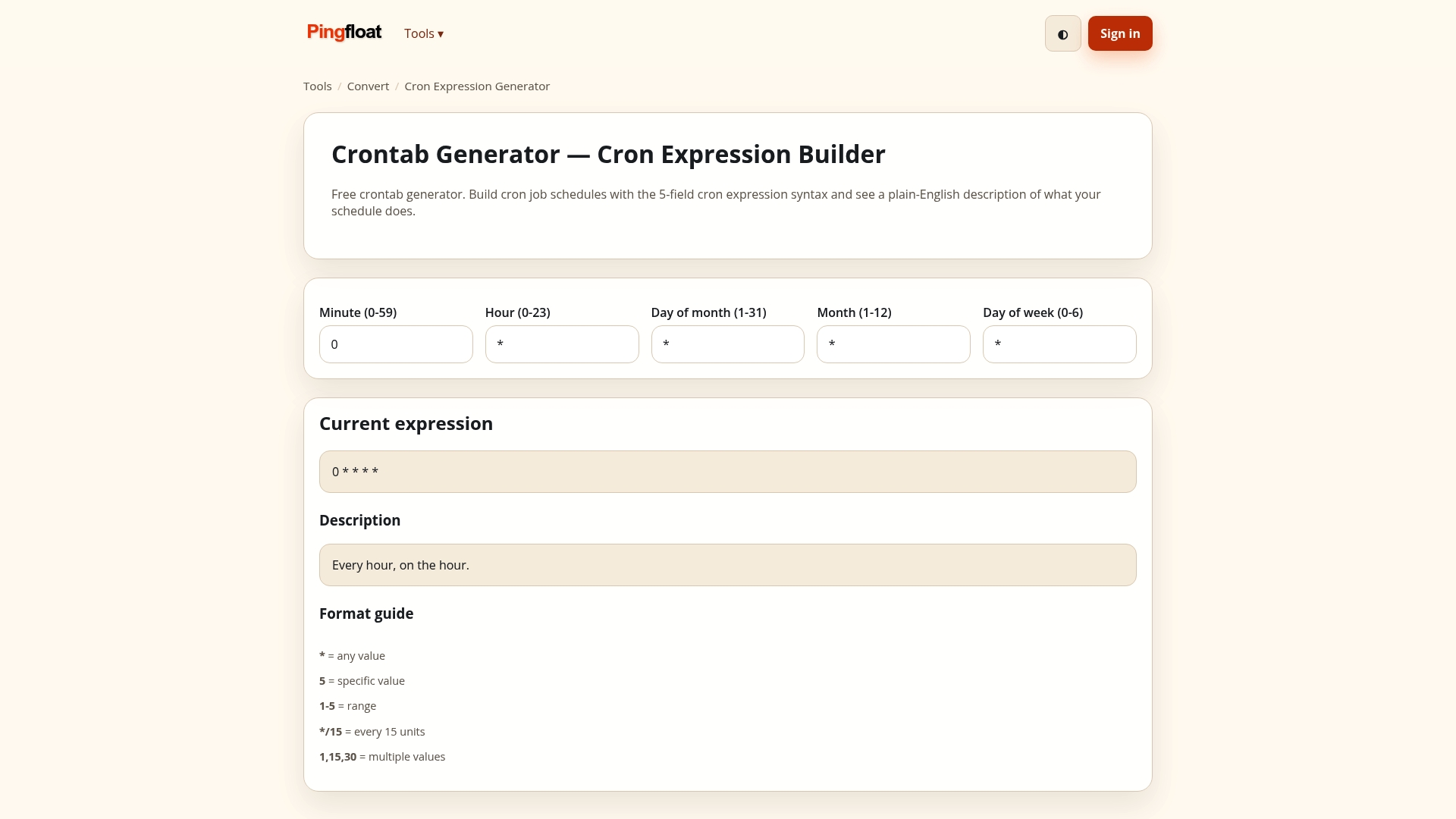
We built File Sharing & Secure File Transfer as part of our web tools suite because testing expiry behavior shouldn't require installing anything. Create a share, set it to expire, then open the link in an incognito window to confirm it behaves as expected. If it doesn't, revoke it and start over. It's a practical way to check your assumptions about a platform's expiration settings before you trust them with something sensitive.
How expiration interacts with different file types and sizes
Expiration settings themselves don't usually change based on file type, but the practical risk does. A single PDF invoice or a signed contract is easy to track and revoke cleanly, since there's one object and one access point. A folder of hundreds of images or a nested project directory is harder to manage, because platforms sometimes apply expiration at the top-level share while individual files within it retain separate permissions set earlier.
Large files raise a different issue: transfer services with size limits often chunk or cache files across their content delivery network, and that cached copy can persist briefly even after the share itself expires, particularly on free tiers of transfer tools that prioritize speed over strict access control. Video files and large archives are the most common culprits, simply because they're more likely to be downloaded partially or resumed, which can interact oddly with a TTL that was set to apply to the full file.
The safest approach for large or mixed-content shares is to bundle everything into a single compressed file before sharing, so the expiration setting applies to one object instead of many. It also makes it easier to verify, in a single check, that the whole share is dead after expiration rather than discovering that three out of twenty files in a folder quietly remained accessible.

Automation tools or scripts to manage expiration for bulk shares
Manually setting expiration on dozens or hundreds of shares doesn't scale, which is why teams managing bulk file distribution often turn to the platform's API rather than its web interface. Google Drive, OneDrive, and SharePoint all expose sharing and permission endpoints that let a script set expiration dates, named-recipient access, and revocation in batches rather than one file at a time.
For teams without the engineering time to build custom scripts, some community-shared tools and self-hosted projects fill the gap, letting administrators schedule expiration sweeps or automatically revoke links that haven't been accessed within a set window. These tend to be useful stopgaps when a platform's native UI doesn't expose granular bulk controls, though they add another system to maintain and secure.
Whatever the method, the core discipline is the same: expiration should be set at the moment of creation, not applied retroactively through a cleanup script. A scheduled job that audits and revokes forgotten shares is a safety net, not a substitute for setting the right expiration the first time.
Legal and compliance considerations related to expired shared files
An expired link does not mean the data is gone or that your compliance obligations end. If a recipient downloaded a file before the link expired, that copy exists independently of your platform's access controls, and legal responsibility for that data, particularly under data protection or contractual confidentiality terms, generally follows the file itself rather than the link's status.
For regulated industries, the key question usually isn't whether the link still works, but whether you can demonstrate who had access and for how long. Identity-bound sharing with logging gives you that audit trail; an anonymous expiring link generally does not, which is part of why CISA's SCuBA baselines push organizations toward tighter, identity-aware sharing configurations rather than relying on link expiration alone.

If a shared file turns out to have been exposed improperly, whether through a misconfigured "anyone with the link" setting or a share that outlived its purpose, your obligations don't disappear once the link stops working. Review your jurisdiction's breach notification requirements and, if ransomware or unauthorized access is suspected, follow established incident response steps rather than assuming an expired link closes the matter. For regulated teams handling documents that can't risk cloud exposure at all, some organizations choose to keep sensitive PDFs off upload-based services entirely, favoring offline secure PDF sharing methods as an added layer of control.
Try Pingfloat's file-sharing tools for quick, expiring links
Our file sharing tools support quick, no-install transfers where you can create a link, set it to expire, and share it without creating an account first.
- Create an expiring link through File Sharing & Secure File Transfer.
- Test access in a private browser window before and after the expiration window.
- Revoke the share manually if you need the link dead sooner than planned.
If you're also checking a site's broader health while you're at it, our Website Uptime Monitor and SSL Checker run the same way: free, browser-based, no setup required.
A few mistakes worth avoiding
The most common mistake isn't a technical one. It's sharing "anyone with the link" and forgetting the link exists six months later. A short checklist handles most of it: set an expiry at creation, default to identity-bound access when the content matters, test the link in an incognito window before and after expiry, and log the share somewhere you'll actually check again.
— Andreas
FAQ
What is the best way to share files with others?
For sensitive or regulated content, identity-bound sharing with a short access window and logging is the safer choice, since it can be revoked instantly and tracked. For quick, low-stakes transfers, an expiring or one-time-download link is usually sufficient.
How long are expiring share links good for?
It depends entirely on the platform and plan: some default to a fixed window measured in days, while others let you set a custom expiration date at creation. Microsoft's OneDrive documentation notes that some expiration controls are limited to Microsoft 365 subscribers rather than free accounts.
How do I set an expiry date on a shared link?
On Google Drive, add the recipient by email and click the clock icon next to their name to set an expiration date. On OneDrive or SharePoint, open "Manage access" on the file and edit the expiration date from the existing link's settings.
What are the risks of sharing files without expiration?
Links left active indefinitely tend to accumulate into what's often called governance drift, where old shares quietly outlive their purpose and nobody remembers who still has access. NIST's file exchange guidance also cautions that many ad-hoc sharing methods lack the protections of managed transfer tools, which raises the stakes of a forgotten link.
Sources
- Security Considerations for Exchanging Files Over the Internet (NIST ITL Bulletin)
- Secure Cloud Business Applications (SCuBA) Project | CISA
- Share files and folders in Microsoft OneDrive | Microsoft Support