

Traceroute maps the hop-by-hop path packets take to reach a host, showing you exactly where delays or drops happen along the way. Run tracert <host> on Windows or traceroute <host> on macOS and Linux right now to see it in action. Use traceroute instead of ping when you already know a host is reachable but need to find where latency or packet loss is actually happening.
TL;DR:
- Traceroute uses TTL expiration to identify each hop, but routers may filter or rate-limit ICMP and UDP responses, causing missing replies that are often not indicative of issues.
- Different operating systems default to different probe types; Windows uses ICMP echo requests, while Linux and macOS default to UDP, which affects results depending on network filters.
- Speed up troubleshooting by using flags like -n or -d to skip DNS lookups, and reduce probe count or timeout settings to obtain faster, clearer results; privileged modes are required for ICMP or TCP probes on Linux and macOS.
- Asterisks in output usually mean the router deprioritizes or filters probes, not necessarily packet loss or network failure, especially if the final hop responds normally.
- Running traceroute from multiple locations and supplementing it with continuous tools like MTR provides a more reliable diagnosis of intermittent or asymmetric network problems.
Table of Contents
- How Does Traceroute Work?
- How to Run Traceroute on Windows, Linux, and macOS
- Traceroute Flags You'll Actually Use
- How Do You Read Traceroute Output?
- Advanced Traceroute Techniques for Tricky Cases
- A Step-by-Step Triage Workflow for Network Issues
- Publisher Tools for Verifying and Sharing Traceroute Results
- Real-World Scenarios Where Traceroute Earns Its Keep
- Where Traceroute Falls Short
- Security and Privacy Considerations
- What Operational Discipline Actually Looks Like Here
- Run Traceroute Online With Pingfloat
- Sources
- FAQ
How Does Traceroute Work?
Traceroute exploits a quirk in how routers handle a packet's Time to Live (TTL) field. Every packet starts with a TTL value that decreases by one at each router it passes through. When a router receives a packet with a TTL of zero, it drops the packet and sends back an ICMP "Time Exceeded" message to the sender, identifying itself in the process.
Traceroute sends a probe with TTL set to 1, gets a reply from the first router, then sends another probe with TTL set to 2 to find the second router, and repeats until it reaches the destination. That's the entire mechanism. Each "hop" in your output is one router revealed by this incrementing TTL trick.
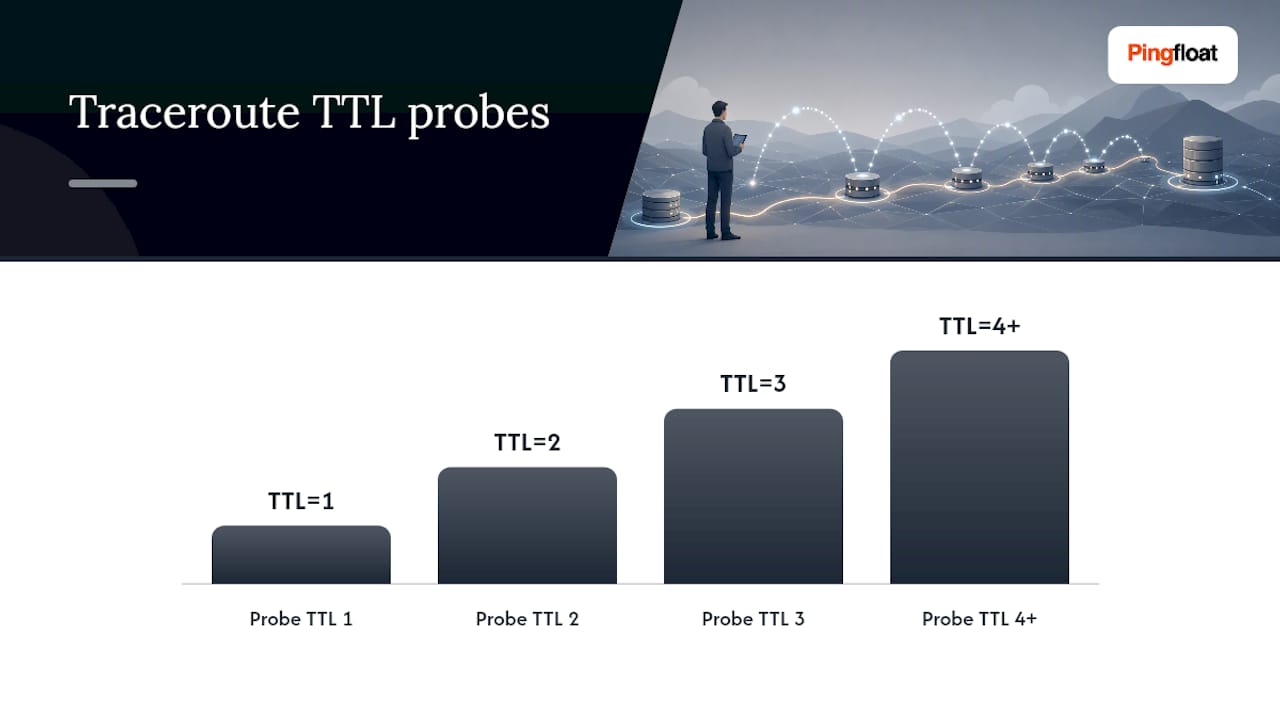
The probe type matters more than most people realize. On many Linux and macOS builds, traceroute defaults to UDP packets aimed at unlikely port numbers, while Windows tracert uses ICMP echo requests exclusively. This distinction explains why the same destination can produce different results depending on which machine you run the trace from, since firewalls and routers often treat these protocols differently.
Routers don't always answer. Some deliberately rate limit ICMP responses to protect their control plane from being overwhelmed by traceroute or ping traffic, while others filter these packets entirely for security reasons. Neither behavior means the network is broken. It just means that hop chose not to participate in the conversation.
A few mechanics worth keeping in mind before you start reading output:
- TTL expiration, not destination refusal, is what generates each hop's reply.
- UDP probes and ICMP probes can produce different paths through the same network due to different firewall rules.
- A router that stays silent is often protecting itself, not signaling an outage.
- The final hop replies differently than intermediate hops, usually with a "port unreachable" or successful echo reply depending on probe type.
Once you understand that traceroute is really a TTL expiration exploit rather than a true routing query, a lot of confusing output starts making sense.
How to Run Traceroute on Windows, Linux, and macOS
Every major operating system ships a traceroute utility, but the command name, default probe type, and available flags differ enough to trip up anyone switching between platforms.
Running traceroute on Windows
Windows calls its version tracert, and it works from both Command Prompt and PowerShell with identical syntax.
- Open Command Prompt or PowerShell.
- Type
tracert example.comand press Enter to start a basic trace. - Add
-dto skip reverse DNS lookups and get results significantly faster:tracert -d example.com. - Add
-h 15to cap the trace at 15 hops instead of the default 30:tracert -d -h 15 example.com. - Add
-w 500to shorten the timeout to 500 milliseconds per probe if the default wait feels sluggish:tracert -d -w 500 example.com.
Windows tracert relies on ICMP echo packets by default, and Microsoft's own documentation on troubleshooting TCP/IP problems with TRACERT confirms this is fixed behavior, not something you toggle with a flag the way you can on Linux.
Running traceroute on Linux
Most distributions ship traceroute as a separate package rather than a core utility, so check first with which traceroute.
If it's missing, install it with sudo apt install traceroute on Debian and Ubuntu systems, or sudo yum install traceroute on RHEL and CentOS derivatives.
Basic usage looks like this:
traceroute example.comruns a standard UDP-based trace with reverse DNS enabled.traceroute -n -q 1 -w 2 example.comskips DNS lookups, sends just one probe per hop instead of three, and waits only 2 seconds per probe. This combination is the fastest way to get a rough picture of a path.sudo traceroute -I example.comswitches to ICMP probes, which requires elevated privileges on most Linux systems.sudo traceroute -T -p 443 example.comswitches to TCP probes aimed at port 443, useful when UDP and ICMP are both filtered somewhere along the path.
The -I and -T flags need root access because raw socket creation for ICMP and TCP SYN probes is a privileged operation, a detail confirmed in the traceroute man page.
Running traceroute on macOS
macOS uses BSD traceroute, which behaves almost identically to the Linux version syntactically, though the underlying implementation differs slightly.
Run traceroute example.com for a standard trace. Because macOS performs reverse DNS lookups on every hop by default, add -n to speed things up dramatically: traceroute -n example.com. For a TCP-based trace on macOS, use traceroute -P tcp -p 443 example.com, since the flag syntax differs slightly from Linux's -T.
Numeric IP versus hostname: which should you use?
Use numeric output (-n or -d) whenever you're troubleshooting under time pressure or when a hop's reverse DNS record is stale, missing, or pointing to a generic ISP label like "customer-edge-router.isp.net" that tells you nothing useful. Reverse DNS lookups also add real latency to every single hop, since traceroute has to wait for a DNS response before printing each line. Hostnames are worth keeping only when you're trying to identify which network operator owns a given hop, since a clean PTR record sometimes reveals a data center or ISP name that a bare IP address never would.
Traceroute Flags You'll Actually Use
You don't need to memorize every option traceroute supports. A small handful of flags covers nearly every real troubleshooting scenario.
-n(Linux/macOS) or-d(Windows): Skip DNS resolution entirely. This is the single biggest speed improvement you can make to any trace and should be your default for anything time-sensitive.-q <count>: Set how many probes are sent per hop. Dropping this from the default three to one speeds up a trace substantially, at the cost of losing visibility into jitter at each hop.-w <timeout>: Control how long traceroute waits for a reply before marking that probe as lost. Shortening this speeds up traces through networks with lots of silent hops, but too short a timeout on a legitimately slow link produces false asterisks.-m(Linux/macOS) or-h(Windows): Cap the maximum number of hops the trace will attempt, useful for stopping a runaway trace against a misconfigured or looping path early.-I: Force ICMP echo probes instead of the platform default, matching Windows tracert's native behavior.-T -p <port>: Force TCP SYN probes to a specific port, which is the most reliable way to see the actual path a real application like a web browser or API client will take.
ICMP and TCP probe modes both require elevated privileges on Linux and macOS because they need raw socket access, according to the traceroute man page. Run these with sudo rather than as a permanent root session.
Pro Tip: Keep your probe count low and your trace frequency infrequent when testing against production infrastructure you don't own. Repeated automated traceroute runs can look like reconnaissance activity to intrusion detection systems, even though the command itself never modifies anything on the remote host.
How Do You Read Traceroute Output?
Each line in a traceroute report follows the same basic pattern: hop number, then hostname or IP address, then a set of round-trip time (RTT) measurements. Most implementations show three RTT values per hop by default, one for each probe sent, which is what lets you spot jitter rather than relying on a single sample.
A typical line looks like this:
5 10.20.30.1 (10.20.30.1) 12.442 ms 11.887 ms 13.201 ms
Three consistent numbers in the 10 to 15 millisecond range tell you that hop is healthy and stable. A line where the numbers jump wildly, say 12 ms, then 340 ms, then 15 ms, points to queuing delay or congestion at that specific hop rather than a consistent physical distance issue.
What do asterisks mean?
Three asterisks (* * *) mean no reply arrived within the timeout window, typically around 5 seconds by default on many Linux builds according to Linuxize's breakdown of the traceroute command. This does not automatically mean packet loss on the actual data path. It usually means that specific router deprioritizes or filters the diagnostic probes it received, while still forwarding your real application traffic normally.
The distinction that trips up almost everyone: middle-hop asterisks are usually harmless, final-hop asterisks or failures usually are not. If hops 4 through 9 show stars but hop 10, your actual destination, replies cleanly and the application works, you're looking at control-plane behavior, not a real forwarding problem.
Here's what separates a real issue from noise:
- Asterisks scattered through the middle of a trace, with a healthy final hop, almost always mean deprioritized probes.
- Asterisks at the very last hop, paired with an application timeout or connection failure, point to a genuine problem.
- A sudden latency jump that persists at every hop after a certain point suggests real congestion starting at that router.
- A latency jump that appears once and drops back down on the next probe is jitter, not a sustained issue.
One more wrinkle: the path traceroute shows you is only the forward path. Return traffic can take a completely different route through the internet, a phenomenon known as asymmetric routing. The "near-side interface" a router reports back is simply whichever interface answered your probe. It tells you nothing definitive about the path packets take on their way back to you, so don't assume symmetry when diagnosing a one-way latency complaint.
Advanced Traceroute Techniques for Tricky Cases
Default traceroute behavior fails in predictable ways once you're dealing with modern network security appliances, IPv6 deployments, or MTU mismatches. A few advanced techniques cover almost every edge case.
TCP traceroute for bypassing filters. Firewalls increasingly drop ICMP and UDP diagnostic traffic while allowing normal application traffic through untouched. Running sudo traceroute -T -p 443 example.com sends TCP SYN probes to port 443, which emulates the exact path an HTTPS connection would take. This method typically needs elevated privileges because half-open TCP SYN probes require raw socket access, but it's often the only way to get a usable trace against hardened infrastructure.
IPv6 tracing. Add -6 to force an IPv6 trace: traceroute -6 example.com. IPv6-specific failures often show up as immediate unreachability at the first hop, which usually points to a missing IPv6 route or a misconfigured router advertisement rather than a downstream problem.
Finding MTU and fragmentation issues. Standard traceroute won't reveal MTU mismatches on its own. On Linux, tracepath example.com is purpose-built for this and reports the path MTU at each hop, flagging exactly where packet fragmentation starts happening. This matters most when large file transfers or VPN tunnels stall despite small pings working fine.
- Use TCP traceroute whenever UDP or ICMP traces dead-end but the service itself is reachable in a browser.
- Use
-6explicitly rather than assuming your resolver will pick IPv6 automatically. - Use
tracepathinstead of traceroute specifically when troubleshooting large-payload failures. - Always re-run privileged probe modes with
sudorather than staying logged in as root for the whole session.
A Step-by-Step Triage Workflow for Network Issues
When a ticket lands on your desk saying "the app is slow" or "we can't connect," a structured sequence beats randomly running commands.
- Confirm reachability first. Run a basic
pingor attempt a TCP connect to the relevant port before touching traceroute. If the host doesn't respond to anything, you're dealing with a reachability problem, not a routing nuance. - Run a fast numeric trace. Use
traceroute -n -q 1 -w 2 example.com(ortracert -d example.comon Windows) to get a quick, low-noise snapshot of where the path breaks down. - Switch probe types to rule out filtering. If the trace dead-ends with asterisks, rerun it with
-Ifor ICMP or-T -p 443for TCP to see whether a different probe type gets past the same hop. - Run MTR for anything intermittent. A single traceroute is a snapshot; it can't tell you whether a hop drops 2% of packets over ten minutes. MTR continuously probes every hop and aggregates loss percentage and average RTT over time, which is exactly the evidence you need for intermittent complaints. Run
mtr --report -c 100 example.comto generate a clean report tied to a specific cycle count. - Package the evidence for escalation. Before opening a ticket with an upstream provider, collect the raw traceroute and MTR output, the exact source and destination IP addresses, timestamps for when you ran each test, and a note on which network you tested from.
Pro Tip: Never escalate on a single traceroute snapshot alone. Providers and carriers see asterisks constantly and will often dismiss a report that doesn't include an MTR cycle count showing sustained loss over time.
This sequence works because it moves from cheap and fast tests to progressively more detailed ones, so you're never running a 10 minute MTR report before confirming the host is even reachable.
Publisher Tools for Verifying and Sharing Traceroute Results
Running commands locally works fine for solo diagnosis, but sharing results with a teammate or a support desk often means screenshotting a terminal window, which is clumsy. Pingfloat's online traceroute tool runs a trace from Pingfloat's own infrastructure and produces output you can copy directly into a ticket, which is useful for confirming whether a routing issue is specific to your network or visible from elsewhere on the internet.
Pairing that with Pingfloat's What's My IP lookup and response headers inspector rounds out a basic evidence packet: your source IP, the hop-by-hop path, and confirmation of what the destination server actually returned. When a trace shows the network path is clean but a secure connection still fails, running the destination through an SSL Checker usually narrows the problem down to a certificate issue rather than a routing one.
Real-World Scenarios Where Traceroute Earns Its Keep
Diagnosing latency complaints is the most common use case. When a user reports "the site feels slow," a trace often shows RTT climbing gradually across several consecutive hops rather than spiking at one point, which usually indicates congestion building across a shared segment of the ISP's backbone rather than one bad router.
Routing loops show up unmistakably: the same one or two hostnames repeat over and over in the output, with the hop counter climbing until it hits the maximum and traceroute gives up. This almost always means a misconfigured routing table somewhere upstream, and it's one of the few traceroute patterns that's genuinely unambiguous.
Detecting ISP-side issues gets trickier because you're relying on hostnames the ISP chooses to publish. A trace that shows clean, low latency through your local network, then a sudden jump right as it crosses into a hop named after a regional carrier, is a strong hint the problem sits with that provider rather than with the destination server or your own infrastructure.
Diagnosing asymmetric slowness, where downloads are fine but uploads crawl, requires running traceroute from both ends if you can. The forward path from your machine may look perfectly healthy while the return path takes a completely different, congested route you'd never see from a single-direction trace.
Where Traceroute Falls Short
Traceroute is a snapshot tool, and a single run captures conditions at one moment on one path, which is its biggest structural limitation. Network conditions on the public internet shift constantly as load balancers redistribute traffic and BGP routes update, so a trace run five minutes apart can show two different paths to the identical destination.
Load balancing itself confuses traceroute results in subtle ways. Some routers hash packets across multiple paths based on source port, and since traceroute's UDP probes often use a different port for every single probe, individual hops in the output can appear to belong to entirely different, inconsistent paths, even though a real application session would stick to one consistent route.
Firewalls and security appliances that silently drop ICMP or rate limit responses will make a perfectly healthy hop look broken. This is the single most common reason people misdiagnose a working network as faulty, mistaking policy-based traffic shaping for an actual outage.
Reverse DNS records add another layer of unreliability, since a stale or missing PTR record can make a hop look anonymous or mislabeled even when the underlying routing is fine. And because the near-side interface concept means you're only ever seeing the forward path, a trace can look completely clean while a return-path problem causes the exact symptoms a user is complaining about. Treat any single trace as one data point, never as a complete diagnosis.
Security and Privacy Considerations
Traceroute is fundamentally a read-only diagnostic. It doesn't modify anything on the remote host, write to any router configuration, or leave a lasting footprint on the destination. That said, running frequent automated traces against infrastructure you don't own can be interpreted as reconnaissance activity, particularly against hardened targets that log and alert on repeated probing patterns from the same source.
There's also a topology exposure angle worth considering from the other direction. Every hop your trace reveals is technically information about someone else's network, hostnames, IP ranges, and sometimes even internal naming conventions that hint at organizational structure. If you're documenting a trace for a public support forum or a shared ticket, it's worth scrubbing hop details that reveal more about a third party's internal network than necessary.
On the defensive side, if you manage infrastructure yourself, understand that blocking ICMP entirely to "hide" from traceroute rarely works the way people expect. TCP-based traces will still map your network's structure, so layered IP access controls tend to be a more effective approach than relying on ICMP filtering alone.
What Operational Discipline Actually Looks Like Here
Most guides treat traceroute as a one-shot command you run and read once. That's not how experienced network administrators actually use it. The real skill is knowing when a single trace is enough evidence and when it's actively misleading you.
Running the same trace from your office network and then again from a mobile hotspot or a different ISP connection takes maybe two extra minutes, and it catches an entire category of asymmetric routing problems that a single vantage point will never reveal. If both traces agree, you've just ruled out your local network as the cause. If they disagree, you've learned something a single trace couldn't tell you.
The instinct to escalate after one scary-looking trace with a wall of asterisks is understandable but usually premature. Upstream providers see this constantly, and a ticket built around a single snapshot gets deprioritized fast. Bring an MTR report with a real cycle count and matching timestamps instead, and you'll get taken seriously on the first pass.
— Andreas
Run Traceroute Online With Pingfloat
Pingfloat's traceroute tool runs the same hop-by-hop trace covered throughout this guide directly from your browser, with no local install, package manager, or elevated privileges required. That matters most when you're on a locked-down work laptop or need a second vantage point fast, since the trace runs from Pingfloat's infrastructure rather than your own network.
Every core diagnostic tool on Pingfloat is free to use, including the traceroute utility itself. When a trace comes back clean but a service still won't load properly, pair it with the SSL Checker to rule out a certificate problem, or set up ongoing uptime monitoring if the issue keeps recurring at irregular intervals rather than showing up as a one-time event. Run a trace now at Pingfloat and copy the output straight into your next support ticket.
Sources
- traceroute(8) — Linux manual page
- How to use TRACERT to troubleshoot TCP/IP problems in Windows - Microsoft Support
- traceroute Command in Linux | Linuxize
FAQ
Is It Safe to Run a Traceroute?
Yes, traceroute is a read-only diagnostic that doesn't modify anything on the hosts or routers it passes through. The one caution is frequency: running automated traces repeatedly against the same target can trigger intrusion detection systems that interpret the pattern as reconnaissance rather than normal troubleshooting.
How Do I Run a Traceroute in Windows 11?
Open Command Prompt or PowerShell and type tracert example.com, replacing the domain with whichever host you're testing. Add -d to skip DNS resolution and speed up the results, following the same TRACERT syntax Microsoft documents for older Windows versions, since the command hasn't changed.
How Do I Interpret Traceroute Results?
Each line shows a hop number, the responding router's hostname or IP, and typically three round-trip time measurements. Asterisks mean no reply arrived within the timeout window, which usually reflects a router deprioritizing diagnostic probes rather than actual packet loss, especially when they appear in the middle of a trace and the final hop responds normally.
How Do I Traceroute to an IP Address?
Traceroute works identically with a hostname or a raw IP address, and adding the numeric flag (-n or -d) skips reverse DNS lookups entirely, which is useful when you specifically want to avoid resolving hop names. Pingfloat's online traceroute tool also accepts a raw IP address directly if you'd rather not run the command locally.