

Confirm measurable packet loss against your gateway and a public resolver first, then isolate whether the problem sits on your local hardware or somewhere upstream. Use ping for the initial check, mtr or traceroute to walk the path hop by hop, and your NIC counters to rule out a bad cable or port. If the loss survives all of that, gather a timestamped MTR trace before you call the ISP.
TL;DR:
- Running multiple ping tests at 20 to 100 samples on local and remote targets helps identify whether packet loss is persistent and at what rate it becomes problematic.
- Using MTR or traceroute continuously highlights intermittent loss and pinpoints if the problem starts at the local gateway or upstream, while understanding ICMP deprioritization prevents false positives.
- Most physical causes of packet loss can be quickly resolved by replacing cables, switching ports, or checking link status, rather than immediately altering network configurations.
- Regularly scheduling monitoring tools like MTR and enabling active queue management tools such as SQM or CAKE prevents bufferbloat and early detection of recurring loss.
- Collecting timestamped traces and interface counters before escalation ensures faster resolution by proving the problem's location and pattern to ISPs, reducing troubleshooting time.
Table of Contents
- How Do You Confirm Packet Loss and Establish a Baseline?
- How Do You Locate Packet Loss Along the Path?
- What Causes Packet Loss at Each Network Layer?
- What's the Right Order for Fixing Packet Loss?
- How Do You Use Pktmon, tcpdump, and Wireshark to Find Packet Loss?
- How Do You Monitor for Packet Loss Before It Becomes a Problem?
- What Should You Prioritize When Troubleshooting Packet Loss?
- The Diagnostic Discipline Most Teams Skip
- Where Pingfloat's Web Tools Fit in Your Workflow
- Sources
How Do You Confirm Packet Loss and Establish a Baseline?
Before you chase a cause, prove the loss is real and repeatable. A single dropped ping means nothing. A pattern across dozens of probes, tested at the right points on the network, means everything.
Run ping against three targets in sequence: a LAN peer on the same switch, your default gateway, and a public resolver like 1.1.1.1 or 8.8.8.8. Use a sample size of 20 to 100 probes per target, since a five-packet test can hide intermittent loss entirely. Testing a LAN peer, the gateway, and a remote IP tells you almost immediately whether the problem lives inside your building or beyond it.
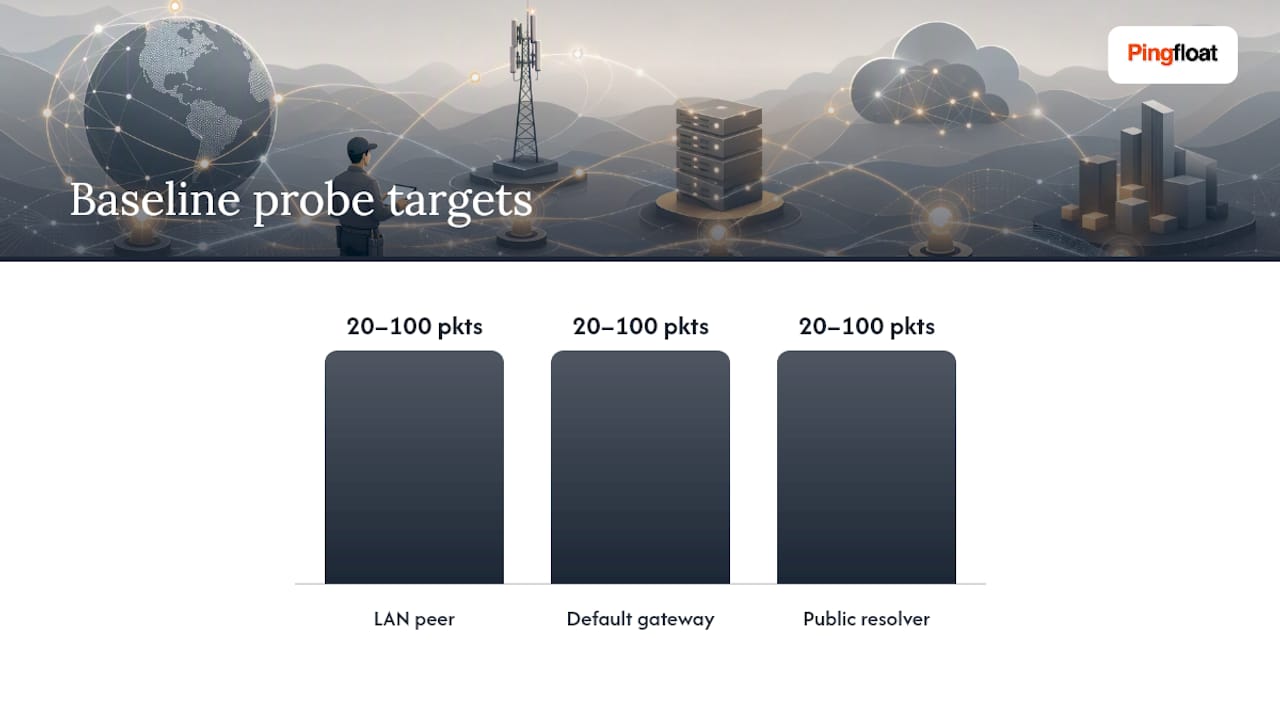
Thresholds matter here. Anything above 1% deserves investigation, and even 1 to 2 percent loss noticeably degrades real-time traffic like VoIP and video calls.
While you test, log the details that make the data useful later:
- Exact timestamps for each test run
- Whether the client was on Wi-Fi or wired Ethernet
- Concurrent network load (backups, large transfers, video calls)
- Which target showed loss and at what percentage
That log becomes your evidence file if the trail leads to your ISP.
How Do You Locate Packet Loss Along the Path?
Once you know loss exists, the next question is where. A single ping tells you loss is happening somewhere between two points. MTR and traceroute tell you which hop.
Run mtr -rw on Linux or macOS, or WinMTR on Windows, against the same destinations you baselined. Unlike a one-shot traceroute, MTR probes continuously and builds a trend, which catches intermittent loss that a single traceroute run would miss entirely. Pathping on Windows does something similar, combining route discovery with sustained statistics per hop.
Reading the output takes a specific approach:
- Scan the Loss% column hop by hop, not just at the final destination.
- Check whether loss at an intermediate hop persists at every hop after it, or disappears by the next one.
- If loss shows up at hop 4, say, but hops 5 through 12 show 0%, that hop is very likely deprioritizing ICMP rather than actually dropping your traffic.
- If loss starts at hop 1, the local gateway, or your own router, stop looking upstream and focus on local hardware immediately.
That third point trips up more technicians than anything else in this workflow. Routers along the path frequently rate-limit or deprioritize ICMP echo requests to protect their CPU, which makes MTR show loss that never actually touches your real traffic.
Pro Tip: Never conclude a router is dropping packets from ICMP alone. Confirm with a TCP or UDP-based test, or correlate against an actual application failure, before you write "hop 6 is broken" in a ticket.
What Causes Packet Loss at Each Network Layer?
Packet loss has a physical cause more often than technicians expect, and working top down through the OSI model wastes time. Work bottom up instead.
Layer 1 (Physical): Bad cables, failing SFP modules, loose connectors, and duplex mismatches top the list. Run ethtool eth0 to check link speed and duplex settings, watch the link LED for flapping, and simply swap the cable or move to a different switch port. This single test resolves more tickets than any other step in this list.
Layer 2 (Data Link): Faulty switch ports, spanning tree recalculations, and broadcast storms all produce loss that looks like a routing problem but isn't. CRC and frame errors visible in interface counters point straight at Layer 2. Move the host to another port to confirm.
Layer 3 (Network): Routing instability, MTU black holes, and ISP peering congestion live here. Step down packet size with do-not-fragment ping probes to find the largest MTU that actually passes, and run MTR across multiple destinations rather than just one.
Transport, application, and security: Bufferbloat under load, QoS policies that police traffic instead of shaping it, and aggressive firewall, WAF, or IDS inspection all masquerade as loss. Security devices flagging traffic as anomalous will silently drop packets that look fine to every other tool you've run, so check firewall logs once the physical layer is clean.
What's the Right Order for Fixing Packet Loss?
Fix cheap and obvious things before you touch configuration. Most packet loss tickets resolve in the first three steps below.
- Switch to wired Ethernet. Wi-Fi interference alone accounts for a large share of loss reports; a cable eliminates the variable in thirty seconds.
- Replace the cable. A worn or damaged Ethernet cable is cheap to rule out and frequently the actual culprit.
- Change switch ports or NIC. Substitution proves whether the fault travels with the hardware or stays with the port.
- Power-cycle the modem and router. This clears transient state that accumulates over weeks of uptime.
- Update NIC drivers and router firmware. Outdated drivers cause dropped frames that never show up as an obvious error.
If quick wins don't fix it, move to configuration:
- Adjust MTU where black holes appear, especially over VPN tunnels
- Enable SQM or CAKE instead of hard QoS policing, since active queue management addresses bufferbloat directly rather than just capping throughput
- Correct duplex and autonegotiation mismatches between NIC and switch
- Tune NIC ring buffers if you're seeing drops under sustained load
Verify every fix by rerunning your original baseline test, same targets, same sample size, and comparing the numbers directly.
| Fix stage | Action | Verification |
|---|---|---|
| Quick win | Swap cable or port | Rerun ping baseline, expect under 1% loss |
| Quick win | Update NIC drivers/firmware | Recheck ethtool counters for errors |
| Config | Enable SQM/CAKE | Retest under load, confirm latency stays flat |
| Config | Adjust MTU | Re-run do-not-fragment probes at target size |
| Escalation | File ISP ticket | Attach timestamped MTR from three destinations |
If loss persists after all of that, escalate with MTRs to at least three diverse destinations plus evidence the problem reproduces when connected directly to the modem, bypassing your own router. That combination short-circuits the "cannot reproduce" response most ISPs default to.
How Do You Use Pktmon, tcpdump, and Wireshark to Find Packet Loss?
When ping and MTR confirm loss but the cause stays hidden, packet captures settle the argument. This is where you stop guessing and start reading actual traffic.

On Windows, Pktmon captures packets at the driver level and can attribute drops to the Windows Filtering Platform or a specific driver, which is invisible to any tool running purely at the application layer. Capture with Pktmon, convert the trace to a format Wireshark reads, and correlate the drop timestamps against your MTR results.
On Linux, the equivalent workflow runs through tcpdump alongside interface statistics:
- Run
ip -s linkandethtool -S eth0to check tx/rx dropped counters - Rising drop counters during your test window tie the fault to the local interface or queueing discipline
- A narrow
tcpdumpfilter (specific host and port, short time window) confirms whether replies ever left the wire at all
Pro Tip: Keep every capture short and filtered. A five-minute tcpdump on the wrong interface generates gigabytes of noise; a thirty-second capture filtered to one destination IP gives you exactly what you need for a ticket.
Collect captures once you're ready to escalate, not before. A concise trace tied to a specific time window carries more weight with an ISP than an hour of unfiltered packets.
How Do You Monitor for Packet Loss Before It Becomes a Problem?
Fixing loss once doesn't mean it stays fixed. ISP-side congestion and hardware degradation both creep back in over weeks.
Schedule periodic MTR or traceroute runs against a fixed set of destinations, and add a lightweight UDP or WebRTC test if you support real-time traffic like voice or video. Enabling CAKE or fq_codel on edge routers keeps bufferbloat from resurfacing as latency-driven loss during peak usage. Store every MTR trace and relevant system log rather than discarding them after the ticket closes; a pattern that shows up only at 8 p.m. on weekdays is invisible in a single snapshot but obvious across two weeks of stored traces.
- Schedule MTR/traceroute runs at fixed intervals, not just when users complain
- Enable SQM/CAKE on any router handling more than a handful of simultaneous connections
- Archive traces with timestamps for trend comparison and future ISP escalations
Even 1 to 2 percent sustained loss measurably degrades real-time application quality, so a monitoring baseline that catches that threshold early saves you from reactive firefighting later.
What Should You Prioritize When Troubleshooting Packet Loss?
Don't trust a single ping run, ever. ICMP gets deprioritized by routers that treat your actual traffic just fine, so correlate every ping or MTR result against NIC counters and a real application test before drawing conclusions.
Substitution beats theory. Swapping a cable, a port, or a NIC takes two minutes and proves a local hardware fault faster than any amount of counter-reading. Reach for it early, not as a last resort after config tweaks.
When you do escalate, capture evidence first. A ticket built on timestamped MTR traces and interface counters gets resolved faster than one built on "it feels slow," because it gives the ISP nothing to argue with.
The Diagnostic Discipline Most Teams Skip
Most packet loss guides treat every hop of ICMP loss as gospel, and that's the single biggest source of wasted troubleshooting hours. The MTR output looks damning, a ticket gets filed against the wrong party, and the real cause, usually something boring like a bad cable or a bufferbloat-choked upstream link, sits untouched for another week.
The workflow that actually works is less exciting than it sounds: confirm loss with a real baseline, walk the path with MTR, treat intermediate-hop loss with suspicion until you confirm it with TCP or UDP, and reach for substitution before you reach for configuration changes. Packet captures settle disputes that counters and pings can't. That sequence, done in order, resolves the overwhelming majority of tickets before you ever need to open a support case with a carrier.
What's underrated is the discipline of storing your evidence as you go. A technician who saves timestamped MTR traces from day one turns a three-week ISP dispute into a two-day fix, because the pattern is already documented instead of reconstructed from memory after the fact.
— Andreas
Where Pingfloat's Web Tools Fit in Your Workflow
Pingfloat gives you a way to sanity-check a remote path without opening a terminal or leaving the browser tab you're already in. When a client reports slowness from a location you can't reach directly, running a synthetic traceroute from Pingfloat gives you a second vantage point on the same path in seconds.
Pair that with the what's my IP lookup to confirm which egress address a remote client is actually using, and the response headers inspector to check whether an application-layer symptom is really packet loss or something upstream at the server. None of this replaces a local capture with tcpdump or Pktmon; those stay mandatory for root cause. But for a quick remote read before you commit to a full diagnostic session, or for ongoing checks once a fix is in place, Pingfloat's uptime monitor can run scheduled checks so you catch a regression before a user reports it. Set one up on the destinations you care about most and you'll have a trend line waiting the next time loss creeps back in.