

For most people and teams, a password-protected share link with an expiration date, or an end-to-end encrypted send for anything genuinely sensitive, is the fastest secure way to hand off a file. The catch: a password alone doesn't encrypt anything, it just gates who can open the link.
Three approaches cover almost every situation:
- Passworded cloud share link with an expiration date, for everyday sensitive documents.
- End-to-end encrypted (E2EE) secure send, for medical, legal, or financial files where the sender needs to know the host itself can't read the content.
- Passworded file or archive (a protected PDF, Office document, or AES-256 ZIP), for cases where the recipient needs an offline copy.
Whichever you pick, send the password through a different channel than the link, and set an expiration so the file doesn't sit exposed for months.
Key Takeaways
Password protection controls who can open a file, while encryption controls whether anyone else can read it, and secure sharing requires both working together with proper delivery habits.
| Point | Details |
|---|---|
| Match the method to sensitivity | Use a passworded link with expiration for routine documents, and E2EE for medical, legal, or financial files. |
| Separate the password from the link | Send the password by phone or a different app than the one carrying the share link. |
| Set expiration and revoke access | Turn on link expiration by default and manually revoke access once the recipient confirms receipt. |
| Use unique, strong passwords | Generate a fresh password per share rather than reusing one across multiple files. |
| Start with Pingfloat's free tools | Pingfloat's file sharing tool and Random Password Generator cover the upload, password, and link steps in one place. |
Table of Contents
- Which method fits which use case?
- How do you create a passworded share link and protect a file?
- What separates safe password sharing from a false sense of security?
- How can Pingfloat help you share files with password protection?
- What does password-protected sharing actually get you?
- Ready to share your next file securely?
- Frequently Asked Questions
- Sources
Which method fits which use case?
Cloud share links with a password and an expiration date are the default for a reason: nearly every major storage platform builds this in, and it takes under a minute to set up. Dropbox, Proton Drive, and OneDrive all treat a passworded link plus a countdown timer as table stakes, not a premium add-on.
That convenience has a ceiling. A standard passworded link protects access, not the file's contents in transit or at rest on the provider's servers. For anything where the provider itself shouldn't be able to see the file, an E2EE secure-send tool is the better call. Proton Drive encrypts share links locally before they ever leave your device, so Proton itself can't read what's inside. That distinction matters most for medical records, legal contracts, or financial statements, where "the vendor could technically look" is not an acceptable answer.
A few other patterns worth knowing:
- Protected PDFs and Office files work well when the recipient needs an offline copy that still requires a password to open, independent of any link or platform.
- AES-256 passworded ZIP archives make sense when you're bundling multiple files and want the encryption to travel with the file itself, not just the delivery link.
- Plain email attachments with a password mentioned in the same email are the weakest option on this list. Anyone who intercepts the email gets both the file and the key to open it.
The pattern across all of this: password protection is an access gate, encryption is a lock on the contents. You often want both.
How do you create a passworded share link and protect a file?
The exact menus differ by platform, but the workflow is nearly identical everywhere, and it takes about five minutes the first time you do it.
Creating a passworded share link:
- Upload the file to your storage or file-sharing tool of choice.
- Generate a share link rather than adding a recipient directly by email.
- Turn on password protection and set a strong, unique password (not one you've reused elsewhere).
- Set a link expiration. OneDrive lets you set, change, or remove a password and expiration date on a share link at any point after creating it, which is useful if you need to shut off access early.
- Copy the link and test it yourself in a private or incognito window before sending it out.
Protecting a PDF or Office document:
- Use the app's built-in "Protect" or "Restrict Access" feature, or export to PDF with a password set during export.
- Adobe Acrobat's workflow walks through picking a permission level and saving a separate protected copy, which keeps your working file untouched.
- Save the protected version under a distinct filename so you never accidentally send the unprotected original.
- Open the saved copy yourself to confirm the password prompt actually appears.
Creating an AES-256 passworded ZIP:
- Use an archive tool that explicitly supports AES-256 encryption, not the older, weaker ZipCrypto method some default zip utilities still use.
- Set a strong password and confirm the tool shows "AES-256" in its encryption settings, not just "password protected."
- Test the archive on a different device or a different operating system than the one that created it. Some older tools struggle with cross-platform AES ZIPs.
Pro Tip: Before you send anything, run a verification pass: open the link in a private browser window, confirm the password prompt actually blocks access, check that the expiration date is set correctly, and confirm you can revoke the link on demand. A share link that "should" expire but never got the date set is a common, avoidable mistake.
What separates safe password sharing from a false sense of security?
The biggest vulnerability in password-protected sharing usually isn't the password itself. It's how it gets delivered. Sending the link and the password in the same email or chat message defeats the purpose entirely: anyone who intercepts one gets the other.

NIST's guidance on cybersecurity programs makes the point directly: people, not just technical controls, are the most frequent point of failure. A perfectly configured passworded link still fails if the password travels alongside it.
A few operational habits close most of that gap:
- Send the password by phone, text, or a separate messaging app, never the same thread as the link.
- Use a unique, randomly generated password for every share. A tool like Pingfloat's Random Password Generator removes the temptation to reuse an old one.
- Set an expiration on every link, and revoke access manually once the recipient confirms they've downloaded the file.
- Favor platforms that log access, so you can see when and how often a link was opened.
- Limit permissions to view-only where editing isn't necessary; edit access is a broader exposure than most people realize.
For anything you'd hesitate to read out loud in a public place, lean toward E2EE over password-only sharing. Bitwarden Send's destruct-on-open and expiration features show how far you can shrink the exposure window, sometimes down to a single open before the file disappears entirely. A password on top of that is a second layer, not a substitute for it.
How can Pingfloat help you share files with password protection?
Pingfloat's free suite gives you the pieces of a secure share without needing five separate accounts. The file sharing and secure transfer tool handles the upload and link creation, the Random Password Generator handles a password you won't be tempted to reuse, and the PDF combine tool is useful before you send a multi-document batch, since one protected PDF beats five loose files.
A typical flow looks like this:
- Upload the file (or combine several into one PDF first if you're sending a batch).
- Set a password and, where available, a link expiration.
- Copy the link.
- Deliver the password through a separate channel, by text or a phone call, not the same message as the link.
Pro Tip: Combine multi-file batches into a single PDF before applying a password. One protected file is easier to track, expire, and revoke than five separate links.
What does password-protected sharing actually get you?
Most advice on this topic treats a password as the finish line. It isn't. A password is a lock on the front door; encryption decides whether someone can still see through the windows. The conventional wisdom oversells password protection as a complete security measure when it's really an access-control layer, useful, necessary even, but only one piece of the picture.
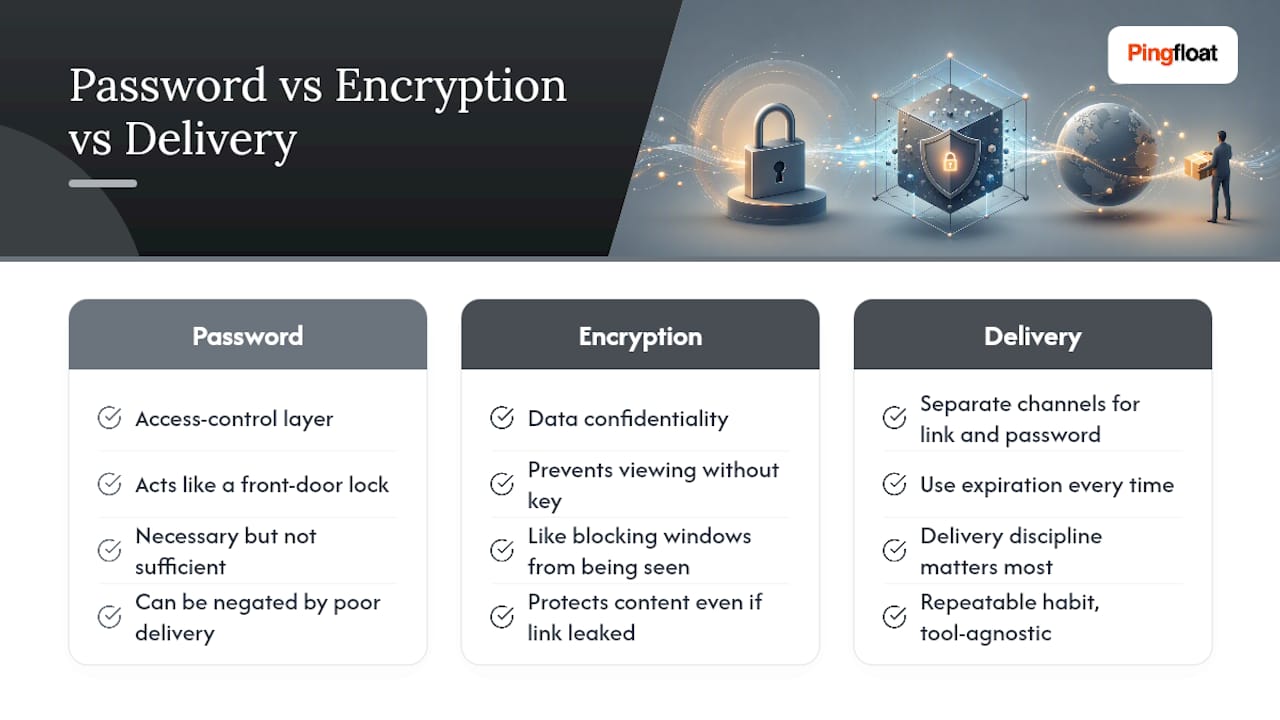
What gets underestimated is delivery discipline. People will carefully craft a twenty-character password and then paste it directly under the share link in the same email. That single habit undoes most of the protection just created. If there's one thing worth prioritizing over picking the "best" tool, it's separating how the link travels from how the password travels.
The reader's real task isn't finding a perfect platform. It's building a repeatable habit: password plus expiration plus a separate delivery channel, every single time, regardless of which tool is doing the hosting.
Ready to share your next file securely?
Pingfloat gives you the password, the link, and the file-prep tools in one free place, so you're not stitching together three different apps to send one sensitive document. Compared to juggling a separate encryption app, a separate password manager, and a separate PDF editor, the appeal here is speed: everything a typical passworded share needs lives under one roof, with no account required to start.
Start with the file sharing and secure transfer tool to upload your document and generate a link. Before you send anything sensitive, run it through the Random Password Generator for a password you haven't used anywhere else, and if you're bundling several files, combine them into a single PDF first so there's just one link to protect, expire, and revoke. If you're also responsible for the site hosting these shared links, Pingfloat's SSL Checker is worth a quick run to confirm your domain's certificate is valid before you send anyone there.
Frequently Asked Questions
Is a password-protected share link the same as encryption? No. A password controls who can access the link, but the file itself may not be encrypted unless the platform specifically offers end-to-end encryption, like Proton Drive or Bitwarden Send.
How do I remove or change a password on a shared file? Most cloud platforms let you edit link settings after creation. OneDrive, for example, allows you to change or remove a password and adjust the expiration date without regenerating the link.
What's the safest way to send someone a password for a shared file? Use a different channel than the one carrying the link, a text message or phone call instead of the same email thread. Sending both together in one message is one of the most common mistakes in password-protected sharing.
Are passworded ZIP files secure enough for sensitive documents? An AES-256 passworded ZIP is reasonably secure for most use cases, but it depends heavily on password strength and the archive tool's encryption method. For highly sensitive data like medical or legal records, an E2EE secure-send tool offers stronger guarantees.
Do I need to worry about compliance when sharing sensitive files with a password? It depends on the data type and jurisdiction. Files covered by healthcare, financial, or data-protection regulations often require documented access controls and audit trails, not just a password, so check the specific rules that apply to your industry and region before relying on password protection alone.
Sources
- Stronger cybersecurity programs start with people (NIST blog)
- Password-protect your files with Proton Drive
- Share files and folders in Microsoft OneDrive