
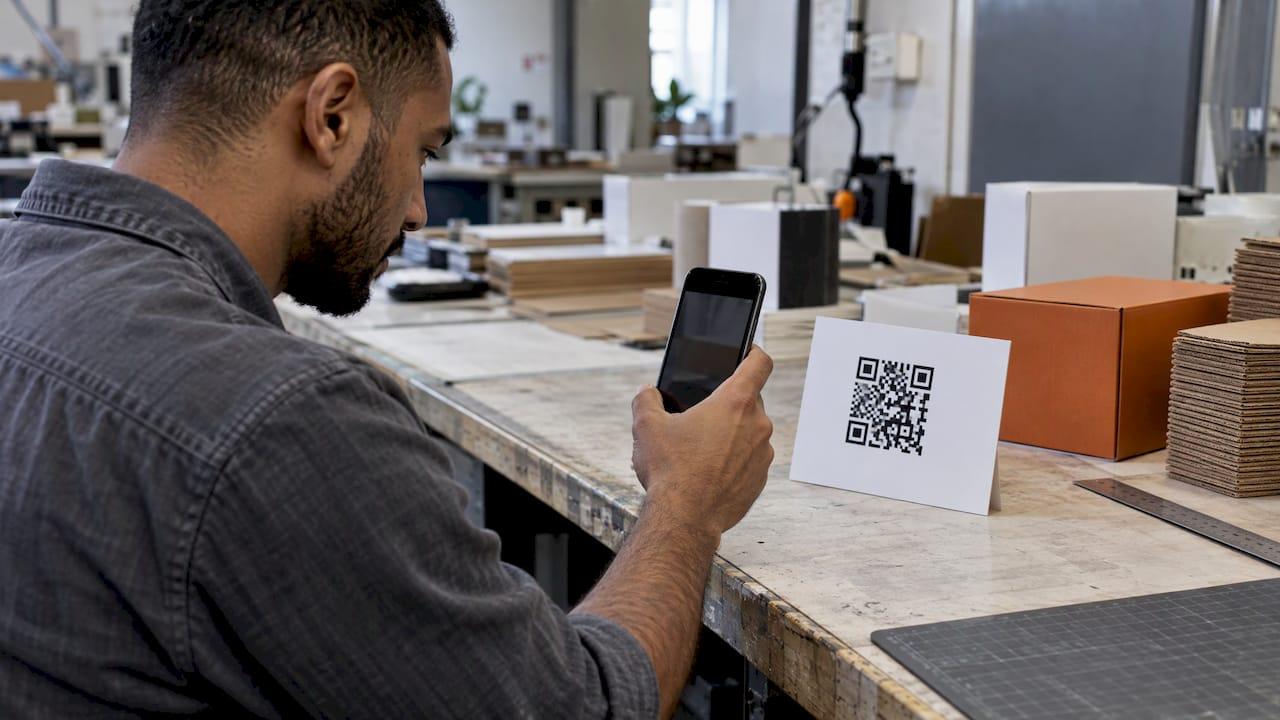
A QR code that will not scan has failed in one of three places: the code itself, the phone reading it, or the link it points to. You can tell which in about two minutes, and each has a short fix. Most print failures come down to size, the blank margin around the code, contrast, or a link so long that the pattern becomes too fine to read. If you are generating the code yourself, our free QR code generator lets you rebuild it with those rules in mind.
TL;DR
- Scan a few other QR codes first. If your phone reads them, the problem is this code. If it reads none, the problem is the phone.
- Keep a clear margin of four modules (the small squares that make up the code) on every side, use dark on light with strong contrast, and never crop the margin.
- Size depends on distance and data: short links need a smaller code than long tracking URLs. Print a proof at final size and scan it before you order.
- A code that scanned once and then stopped usually has a broken or expired destination, not a design fault.
- Shorten the link rather than enlarging the code or piling on error correction.
Table of Contents
- Work out which layer failed
- Fix the phone first if every code fails
- The quiet zone: the margin people crop away
- Contrast and color
- QR code size: how big is big enough
- Error correction is not a cure-all
- Resolution and print quality
- When the destination is the problem
- A repeatable test before you publish
- Perspective
- Make a code that scans the first time
- FAQ
- Sources
Work out which layer failed
Do not change anything until you know where the fault is. Three quick tests separate the layers.
Test 1: scan other codes. Point the camera at two or three unrelated QR codes. If it reads other codes but not yours, the code is at fault, for example because of low contrast or reversed colors. If it reads none, the phone is at fault: closing background apps, restarting the phone, updating the operating system or repairing a faulty camera are the usual fixes, as this Android troubleshooting guide lays out.
Test 2: try a second phone. A code that works on a colleague's phone but not yours points to your scanner settings, lens or software. A code that fails on every phone is a code problem.
Test 3: type the link by hand. If the code scans and shows a link but the page errors out, the code is fine and the destination is broken. That is the pattern when a code worked last month and does not now.
Here is how the symptoms map to causes:
| What you see | Most likely layer | First thing to check |
|---|---|---|
| Camera never reacts, on any phone | Code design | Quiet zone, contrast, size |
| Works on one phone, not another | Scanner | Camera settings, lens, OS version |
| Reads other codes, not this one | Code design or content | Colors, density, damage |
| Link appears but page shows an error | Destination | Typos, expired or moved URL |
| Worked before, fails now | Destination | Whether the link or a managed code was deactivated |
Fix the phone first if every code fails
If the phone reads nothing, spend a minute here before touching the code.
- Clean the lens. A smudged lens is a common reason for a camera that will not lock on. Google's Pixel help recommends wiping a smudged lens with a soft cloth, keeping the whole square in frame and scanning in good light without shadows or glare.
- Turn scanning on. On Pixel phones, Camera scan suggestions must be enabled in Camera settings, per the same Google page.
- Use the built-in options on iPhone. Apple documents that you can scan from the Camera app in Photo mode or from the Scan Code button in Control Center, and that the flashlight in Control Center adds light in dim places.
- Move closer or back off. Keep the full code, with its margin, inside the frame, and hold steady long enough for autofocus.
If you are testing a screen, check brightness and glare too. A phone screen held at an angle under overhead lights can wash out a code that would scan fine on paper.
The quiet zone: the margin people crop away
The quiet zone is the empty border around a QR code. It is part of the code, not decoration. Scanners use it to find where the pattern starts. Microsoft's developer documentation states that QR codes need a margin four modules wide on all sides. A module is one of the small squares in the grid.
The margin is easy to lose by accident:
- A designer crops the image tight to the code.
- The code is placed flush against a colored block, a photo or a border.
- Text or a logo runs up to its edge.
- A die-cut, fold or bleed trims the edge on press.
The fix is arithmetic. Measure one module, multiply by four, and keep that distance clear on every side, in the same light color as the background of the code. On a code with 33 modules per side, those margins add eight modules to the overall width, so a code whose squares total 30 mm across needs about 37 mm of clear space in all. Build the margin into the artwork file instead of relying on the printer.
Contrast and color
A scanner must separate dark modules from light ones. Black on white is safest. Problems start when designers use brand colors:
- Dark gray on beige or light gray on white.
- Inverted codes (light modules on a dark background), which some scanners do not read.
- Gradients that fade the pattern toward one corner.
- A tinted background that is not the same color across the quiet zone.
A quick check: convert your artwork to grayscale. If you cannot instantly see the pattern, a camera will struggle too. Keep the dark modules clearly darker than the background and test the actual colors on the actual surface, not on screen.
Surfaces matter as much as ink. Glossy lamination, metallic packaging and curved bottles scatter light or distort the grid, so a code that is perfect on a flat matte proof can fail on the finished product. Choose matte finishes and flat areas where you can.
QR code size: how big is big enough
Two things set the minimum size: how far away the scanner will be, and how many modules the code has. More data means more modules, and at the same printed size each module gets smaller.
Hard floors from published specifications
Some vendors publish absolute floors. Google's manufacturer guidance for its Cardboard viewer says a QR profile should never be smaller than 0.6 by 0.6 inches (15 by 15 mm) in print, and not smaller than 74 by 74 pixels on screen. Microsoft's documentation says its mixed reality headsets do not work with codes smaller than 5 cm on a side. Those are special cases for specific devices. For everyday phone scanning of print, treat 2 by 2 cm as a practical floor for a short link and go larger for anything dense or scanned from farther away.
The distance rule of thumb
A widely used rule is that the code's width should be about one tenth of the scanning distance. Phone cameras need several camera pixels per module, so a code that is large enough at arm's length is not large enough across a room. Applied to common print jobs, the rule gives:
| Printed item | Typical scan distance | Starting code width |
|---|---|---|
| Business card | 15 to 20 cm | About 2 cm |
| Flyer or menu | 30 to 50 cm | 3 to 5 cm |
| Poster | 1 to 2 m | 10 to 20 cm |
| Banner or window | 3 to 5 m | 30 to 50 cm |
Treat these as starting points, not guarantees. If the code is dense, add roughly a third to the width, and leave extra room for older phones, dim light and angled scans. Always confirm with a proof at the final size.
Density: the hidden size problem
A short link such as a 30-character URL produces a sparse grid with chunky modules. A 180-character link with several tracking parameters produces a dense grid. Print both at 2 cm and the second will have modules a fraction of the size, often below what a budget phone camera can resolve.
The cure is almost always to shorten the payload, not to enlarge the code. Point the code at a short, clean URL and let that page redirect to the long destination. If you need campaign tracking, use a managed code so the printed pattern stays simple; our guide on setting up QR code tracking walks through it.
Error correction is not a cure-all
QR codes carry built-in redundancy. The standard defines four levels, and Denso Wave, the format's creator, lists them: L restores 7% of codewords, M 15%, Q 25% and H about 30%. That is why a code with a small logo in the middle can still scan.

Higher levels have a cost, though. More redundancy means more modules for the same data, which shrinks each module at a given printed size. Use a higher level where the code may get scuffed or carry a logo, and a lower one where the code is clean and the link is long. Do not rely on error correction to rescue a missing quiet zone or poor contrast: it recovers damaged data, not a margin the scanner cannot find.
Resolution and print quality
A code can be the right size and still scan badly because the file is blurry.
- Use vector when you can. Export as SVG or PDF for anything printed. Vector edges stay sharp at any size.
- For raster images, export at print resolution. About 300 pixels per inch is the common target for sharp print, so a 1,200-pixel image holds up to roughly 10 by 10 cm. For larger print, switch to vector. A 72 DPI screen export enlarged for print gives fuzzy module edges.
- Do not resize by dragging. Scaling a small PNG up smooths the edges between modules and blurs them together. Regenerate at the new size.
- Mind the printing process. Inkjet ink can bleed on absorbent paper and merge adjacent dark modules. Matte stock and laser printing keep small codes crisp, and glossy coatings can cause reflective glare.
A useful step before any print run: save a proof at final size and scan it from the distance a customer will use, on at least two phones, one of them older.
When the destination is the problem
The most frustrating failure is a code that scans instantly and lands on an error. There are two versions:
- Static codes hold the link itself. A typo in the URL, or a page that has moved, means the code must be regenerated and reprinted.
- Managed (dynamic) codes point to a redirect you control. They break when the code is deactivated or a subscription lapses, but the destination can be edited without touching the printed code.
To check a code before it ships, decode it and read the raw URL. Check the spelling of the domain, that it uses HTTPS, and that following the redirects lands on the page you promised. Then open it on mobile data rather than office Wi-Fi, in case the page is blocked or only reachable internally.
If the page loads but looks wrong, check the page itself. Missing preview images in shared links often trace to metadata, and our guide to fixing og:image issues covers the checks. For codes that lead to downloads, our file sharing tool gives you a link you can put behind a code.
If you publish codes at scale, managed QR codes avoid reprints when a destination changes. And if your codes could be copied or swapped, our piece on QR code security controls explains how to protect them.
A repeatable test before you publish
- Decode and read the URL. Confirm the exact address and that it loads over HTTPS.
- Scan on screen. This proves the pattern itself is valid.
- Print at final size on final stock. Use the real paper, label or surface.
- Scan from the real distance. Use the distance a customer would use, not your desk.
- Try several phones. Include current iPhone and Android models and an older one with an average camera, all with the native camera app.
- Vary the light. Try bright, dim and angled lighting, and watch for glare.
- Record the result. Note which devices failed and how long the scan took, not just whether it worked.
Testing on your own phone in a bright office is the easiest way to miss a failure that customers will hit, because camera hardware and autofocus differ widely between devices.
Perspective
Most "my QR code is not scanning" tickets we read are really three separate problems wearing one label. The code was built wrong, the phone was set up wrong, or the link behind the code died. The fastest way to stop guessing is to separate them, in that order.
For us the lesson is to keep the printed pattern simple and put the complexity somewhere you can still change it. A short link gives you a sparse, forgiving code. A redirect behind it lets you fix the destination without a reprint. That is why our generator offers both static and managed options, and why we treat the quiet zone and contrast as defaults rather than extras.
Build the code, print a proof, scan it like a stranger would. It takes ten minutes and it saves a print run.
Andreas
Make a code that scans the first time
Pingfloat's QR code generator is free and needs no installation or account for the core tool. It offers static codes, plus managed options when you want to change the destination later. Generate your code, export it in the format your print job needs, then run the test above on a proof. The same suite includes other everyday tools on the Pingfloat home page, from SSL checks to JSON formatting.
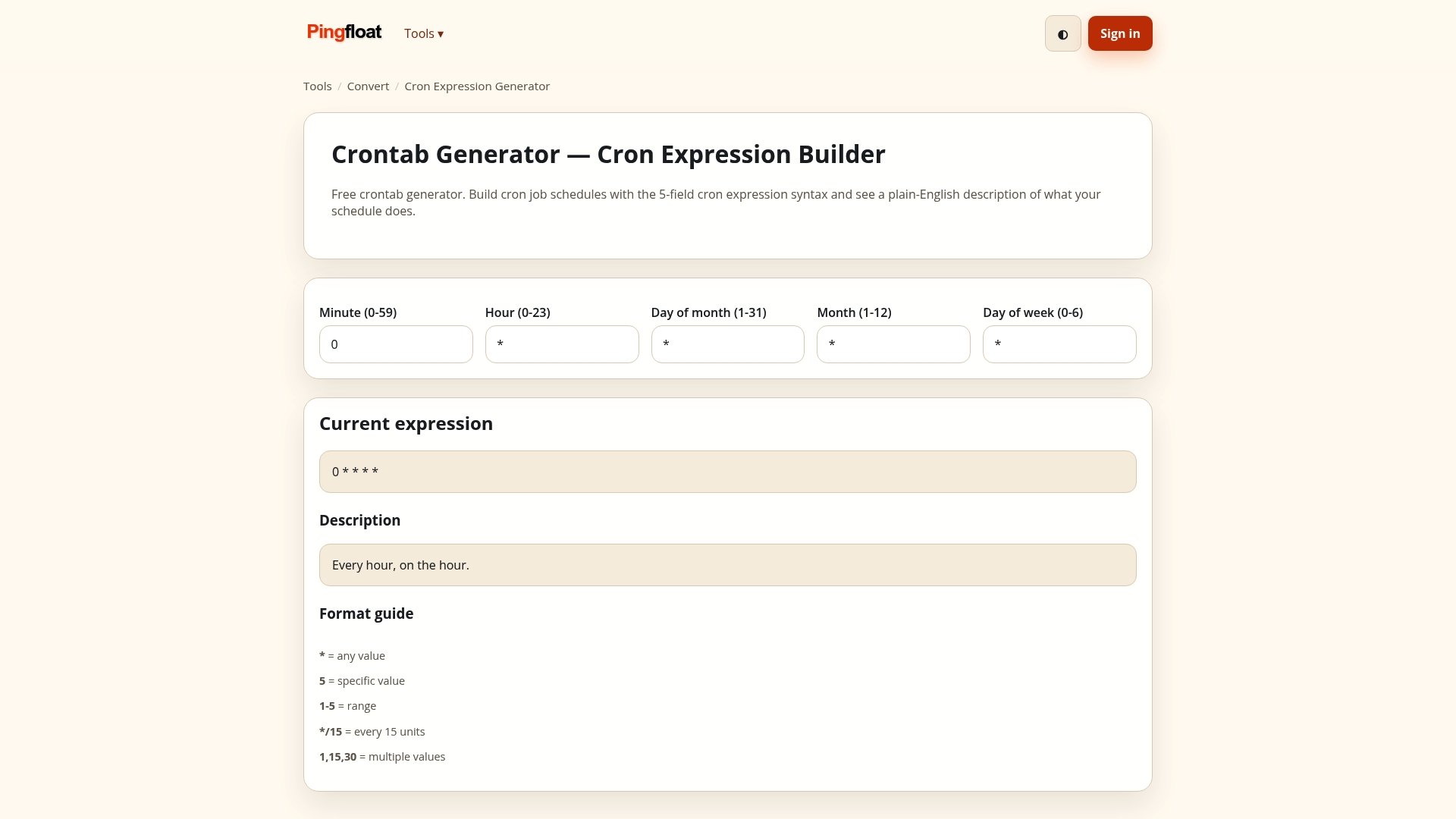
If you build codes programmatically, the QR Code MCP tool generates them through an AI assistant, and the Pingfloat Public API is there for wider automation.
FAQ
Why is my iPhone not scanning QR codes?
First open the Camera app in Photo mode and hold the whole code, margin included, inside the frame. Apple also provides a Scan Code button in Control Center that adds a flashlight for dim places. If other codes scan but this one does not, the problem is the code, usually its margin, contrast or size.
How do I fix an unreadable QR code?
If it is printed, regenerate it with a four-module margin, dark modules on a light background and a larger size, then reprint. If it links to a page that errors out, correct the link or, for a managed code, change the destination. A code that is physically damaged can still scan if it uses a high error correction level, but only up to the limits of that level.
What is the minimum QR code size?
For a short link on print, 2 by 2 cm is a practical floor, and larger is better when scanners are farther away or the data is long. Specific devices set their own limits: for example, Microsoft's mixed reality devices need at least 5 cm. Print a proof at final size and scan it before committing.
Does QR code resolution matter?
Yes. A blurry or upscaled image blurs module edges. Export as SVG or PDF for print, or use a raster image at about 300 pixels per inch at the final size. A screen-resolution PNG stretched to fit a poster is a common cause of failed scans.
Why did a QR code that worked stop working?
Usually the destination changed: the page moved, the link has a typo, or a managed code was deactivated. Scan the code, read the URL it shows, and open it by hand. If the page is gone, restore it or point the code at a new address.
Sources
- Android Phone Not Scanning a QR Code? 8 Fixes (MakeUseOf)
- Scan QR codes with your Pixel phone (Google)
- Scan a QR code with your iPhone camera (Apple)
- QR code tracking overview (Microsoft Learn)
- QR code specifications (Google Cardboard Manufacturer Help)
- QR Code Standardization (Denso Wave)