
Traceroute maps the path IP packets take from your machine to a destination and measures the round trip time to each router along the way. Network engineers run it to find exactly where latency spikes or packet loss starts between two points. If you're chasing a connectivity problem right now, the fastest path forward is to run traceroute (or tracert on Windows) and watch for where the numbers change.
TL;DR:
- Different operating systems use distinct protocols for traceroute, with Windows using ICMP echo requests and Unix-like systems defaulting to UDP, affecting results behind firewalls.
- Router responses to ICMP probes are often intentionally limited or rate-limited, meaning missing responses do not necessarily indicate a downed device.
- Elevated or persistent RTTs across multiple hops suggest genuine network congestion rather than transient issues or measurement noise.
- Using multiple probe types—UDP, ICMP, and TCP—can help identify firewalls or policies blocking specific traffic types that hinder trace completion.
- Continuous tools like mtr and browser-based tracers provide more reliable diagnostics for intermittent or asymmetric network issues by offering ongoing monitoring and multiple data points.
Table of Contents
- How Traceroute Works: TTL, Probes, and Router Replies
- How to Run Traceroute: Windows and Unix-Like Command Examples
- How to Read Traceroute Output: Hops, RTTs, and Asterisks
- UDP, ICMP, and TCP Traceroute: Choosing the Right Method
- Turning Traceroute Output Into a Diagnosis: A Troubleshooting Workflow
- What Traceroute Actually Tells You (and What It Doesn't)
- Run a Quick Check With Pingfloat's Free Traceroute Tool
- Sources
- FAQ
How Traceroute Works: TTL, Probes, and Router Replies
Every traceroute relies on a field in the IP header called Time to Live, or TTL. It's not a countdown in seconds. It's a hop counter, and it's the entire trick behind the tool.
Here's the mechanism. Traceroute sends a packet with TTL set to 1. The first router it hits decrements the TTL to zero, discards the packet, and fires back an ICMP "Time Exceeded" message to your machine. That reply tells traceroute exactly which router sits at hop one, along with how long the round trip took. Traceroute then sends a second packet with TTL set to 2. It survives the first router, dies at the second, and that router sends its own Time Exceeded message. The process repeats, incrementing the TTL by one each round, until a packet finally reaches the destination.
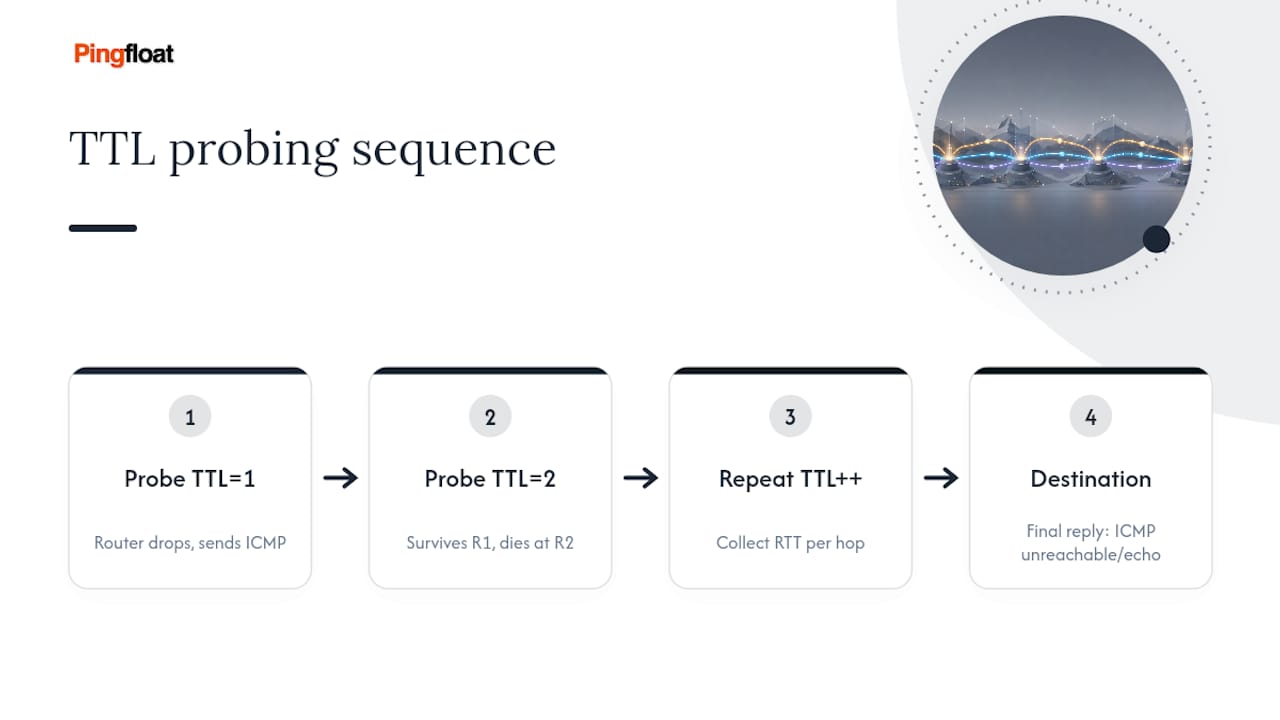
The destination's response is different from every hop before it. Since the packet actually arrives instead of expiring en route, the final host replies with something else: on Unix-like systems running the UDP default, it's an ICMP "port unreachable" message, because traceroute deliberately targets a high, unused port that nothing is listening on. On Windows, since tracert uses ICMP echo requests the whole way, the destination just sends back a normal ICMP echo reply. That protocol difference is the source of a lot of confusion when people compare Windows and Linux output side by side.
By default, traceroute sends three probes per hop and caps the trace at 30 hops. Three probes exist because a single measurement tells you almost nothing. Networks route packets across multiple physical paths, queue delays fluctuate, and a router can be busy on one probe and idle on the next. Seeing three numbers per hop lets you separate a fluke from a pattern.
Platform choice matters more than most people realize. Windows TRACERT uses ICMP echo requests with incrementing TTLs, while traceroute on many Unix-like systems defaults to UDP packets aimed at unreachable high ports. Both approaches reach the same goal through different traffic types, and that distinction explains why a trace that works fine on one operating system sometimes stalls on another, especially behind a firewall tuned to allow one protocol and block the other.
Not every router along the path will answer, because as explained by Essex Telephone Systems Ltd, some routers drop or rate-limit ICMP replies to protect CPU cycles. Some network operators deliberately deprioritize or rate-limit ICMP Time Exceeded traffic to protect router CPU cycles from being consumed by diagnostic chatter, and that's a policy decision, not a malfunction. A firewall might also drop the probe entirely rather than reply. Either way, the result looks identical in your output: a missing response at that hop. The key insight is that a quiet hop in the middle of an otherwise healthy trace usually means "this router chose not to answer," not "this router is down."
How to Run Traceroute: Windows and Unix-Like Command Examples
Running a trace takes seconds, but the flags you choose determine whether you get a clean, fast read or a slow, DNS-cluttered mess.
On Windows, the command is tracert, and it accepts a small set of practical options:
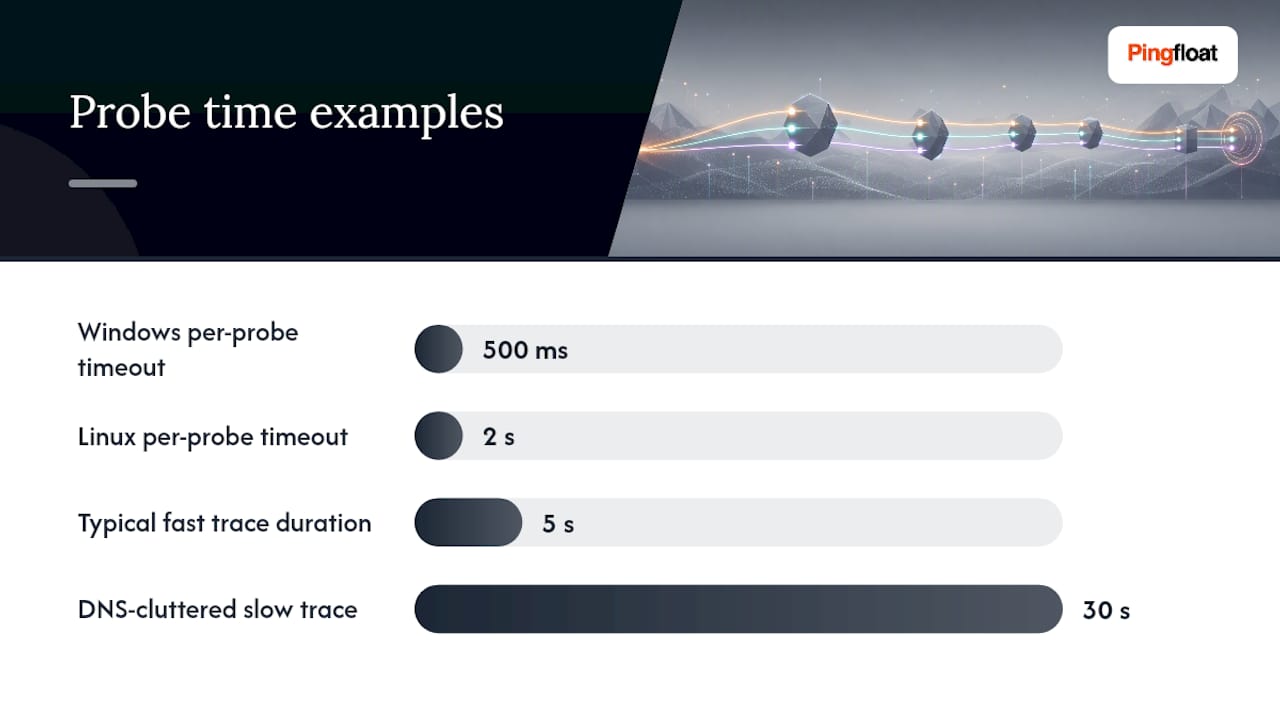
tracert example.comruns a standard trace with default settings.tracert -d example.comskips reverse DNS lookups, which speeds up the trace considerably.tracert -h 15 example.comcaps the trace at 15 hops instead of the default maximum.tracert -w 500 example.comsets a 500 millisecond timeout per probe instead of the default wait.
These flags come straight from Microsoft's own tracert documentation, and -d is the one worth memorizing. Without it, Windows tries to resolve every single hop's IP into a hostname, and a slow or unresponsive DNS server anywhere along the chain can turn a five-second trace into a thirty-second one.
On Linux and macOS, the command is traceroute, and the flag set is richer:
traceroute example.comruns the default UDP-based trace.traceroute -n example.comdisables reverse DNS lookups, exactly like-don Windows.traceroute -q 5 example.comsends five probes per hop instead of the default three, useful when you want more evidence before drawing conclusions.traceroute -w 2 example.comsets a two second wait per probe.traceroute -I example.comswitches to ICMP echo probes instead of UDP.traceroute -T -p 443 example.comswitches to TCP probes targeting port 443, often useful against firewalls that drop UDP and ICMP but allow HTTPS traffic through.
The Linux traceroute manual page documents these methods in detail, along with the underlying default UDP destination port behavior. One permissions note worth flagging: ICMP and TCP trace modes typically require raw socket access, which on most systems means running the command with elevated privileges (sudo traceroute -I example.com on Linux, for instance). Standard UDP mode usually does not need elevated rights.
If your results look jumpy between runs, don't assume something is broken. Try increasing probe count with -q and lengthening the timeout with -w. A trace running across a congested link often needs a longer window to get a fair reading, and three probes at a default timeout sometimes isn't enough to characterize a hop that's borderline.
How to Read Traceroute Output: Hops, RTTs, and Asterisks
Every line of traceroute output follows the same anatomy: a hop number, a hostname (if reverse DNS resolved one) or a raw IP address, then three round trip time values in milliseconds.
A typical line looks like this:
7 edge-router.isp.net (203.0.113.5) 14.221 ms 13.998 ms 41.552 ms
Hop 7 is a router at IP 203.0.113.5, which resolved to a PTR hostname of edge-router.isp.net. The three numbers are your three probes. Two of them sit right around 14 milliseconds, and one jumps to 41. That single outlier is not automatically a problem. A single slow probe among three often reflects transient congestion or a different multipath route rather than a real degradation, since traffic engineering on modern backbones frequently sends packets with the same TTL down different physical links depending on load balancing decisions. This is equal-cost multipath routing in action, and it's completely normal on carrier networks.
Missing hostnames are common and don't indicate a fault. Not every network operator configures a PTR record for its infrastructure, so you'll frequently see a bare IP address with no name attached. If you need to check whether a hostname should exist or want to understand PTR records in more depth, Pingfloat's DNS record reference breaks down how forward and reverse DNS mapping actually works.
Here's how to read the three-number pattern at each hop:
- All three RTTs are close together. That hop is behaving consistently. Trust the number.
- One RTT is far higher than the other two. Treat it as noise unless the same pattern repeats on a second trace run at the same hop.
- All three RTTs are elevated and the elevation persists into every following hop through the destination. That's a real, sustained latency increase worth investigating, not an artifact.
- A single asterisk (
*) appears in place of a time. That probe simply timed out. One*mixed among responses is common and usually harmless. - Every probe at a hop, and every hop after it, shows nothing but asterisks all the way to the destination. That's a genuine reachability problem, not a policy quirk.
The asterisk logic deserves its own emphasis because it trips up a lot of people new to reading traces. A single asterisk usually means no reply arrived in time, often because that router's operator blocks or deprioritizes ICMP replies as a matter of policy, which has nothing to do with whether traffic is actually flowing. A wall of asterisks that continues from a certain hop all the way to your destination, though, is a different story entirely. That pattern says packets stopped getting through at that point in the network.
Pro Tip: Focus on the final hop before you focus on anything in the middle. A slow or unreachable intermediate hop that resolves back to normal by the time packets reach the destination is almost always an ICMP artifact, not a real bottleneck. The last hop's behavior is the signal that actually reflects what your application will experience.
Three annotated patterns show up constantly in real troubleshooting work. A normal trace has RTTs that climb gradually and predictably, with occasional single-probe outliers that don't repeat. A rate limited hop shows one specific router returning asterisks or unusually high times on every trace you run, while every hop before and after it looks fine, which points to that router's own ICMP handling policy rather than a path problem. A congestion point shows RTT jumping sharply at one hop and staying elevated at every hop afterward, including the final destination, which is the pattern that actually warrants escalation.
UDP, ICMP, and TCP Traceroute: Choosing the Right Method
The probe protocol traceroute uses isn't a cosmetic setting. It determines whether your trace completes at all when firewalls are involved.
Unix-like systems default to UDP, sending packets to destination ports starting around 33434 and incrementing with each probe. The logic is elegant: nothing is listening on that port, so the destination replies with an ICMP "port unreachable" message the moment a packet actually arrives, which is exactly the signal traceroute needs to know it's done. Windows takes a simpler route and uses ICMP echo requests for the entire trace, which is why tracert output and default Linux traceroute output can behave differently against the same target, particularly when middleboxes treat ICMP and UDP differently.
TCP-based tracing solves a specific, common problem: firewalls that block UDP and ICMP outright but allow ordinary web traffic through. Running traceroute -T -p 443 sends TCP SYN packets to port 443, mimicking normal HTTPS traffic, and the Linux manual documents this method as a deliberate way to bypass filtering that would otherwise kill a standard trace partway through. The tradeoff is worth knowing: aiming TCP probes at a live service port can, in rare cases, interact with that service, so pick a port you know is safe to probe, and avoid hammering a production port repeatedly.
Use this practical checklist when a trace stalls early:
- If UDP traces stop dead at a hop with no response, switch to
-Ifor ICMP and see if that gets further. - If ICMP is also blocked, try
-Tfor TCP, targeting a common open port like 80 or 443. - Use
-pto align the destination port with a service you know accepts connections, since a random closed port defeats the purpose. - Compare results across all three methods before concluding a hop is actually unreachable rather than just filtering one protocol.
Turning Traceroute Output Into a Diagnosis: A Troubleshooting Workflow
A single trace run is a data point. A troubleshooting case is built from several.
- Establish a baseline. Run a simple
pingto confirm basic reachability, then follow with a standard trace. Note the timestamp of every run. A problem that only shows up at certain times of day points toward congestion, not a broken route. - Find the first hop where things change. Scan down the hop list for the earliest point where RTT jumps and stays elevated, or where responses stop entirely. That hop, and the link feeding into it, is your prime suspect.
- Repeat the trace and add continuous monitoring. A one-off trace can't distinguish a permanent fault from an intermittent one. This is where mtr earns its keep: it combines traceroute and ping into continuous probing, showing packet loss percentage and average latency per hop over minutes rather than a single snapshot. Continuous probing with mtr reveals patterns a single traceroute run simply cannot, which matters enormously for problems that come and go.
- Check for asymmetric routing. The path your packets take outbound is not guaranteed to match the path replies take back. If your trace looks clean but the connection still feels slow or lossy, ask whoever manages the remote network to run a reverse trace from their side. Asymmetric paths are a common reason two people troubleshooting the same connection see completely different pictures.
- Build your evidence package. For an ISP escalation to go anywhere, bring repeated traces spaced over time, tested with more than one probe method, with timestamps and a clear note of whether the destination's own RTT was consistently affected. A single trace showing one asterisk convinces nobody. Ten traces over two hours showing consistent packet loss starting at the same hop is very hard to dismiss.
The gap between a trace and an mtr session is worth internalizing: traceroute gives you a map, mtr gives you a map that updates itself. When a problem is intermittent, that difference decides whether you catch it at all.
What Traceroute Actually Tells You (and What It Doesn't)
Traceroute shows the forward path your packets took and how routers along that path responded to expiring probes. It does not show you the return path, and it does not measure application performance directly. Treating a slow intermediate hop as the confirmed bottleneck without checking whether that slowness reaches the final hop is the most common misread I see. When a problem seems inconsistent or one-sided, reach for continuous tools and reverse traces before drawing conclusions.
— Andreas
Run a Quick Check With Pingfloat's Free Traceroute Tool
If you've been troubleshooting from the command line and want a fast second opinion, Pingfloat's traceroute tool gives you the same hop-by-hop path data in a browser, with no installation and no account required to get a result.
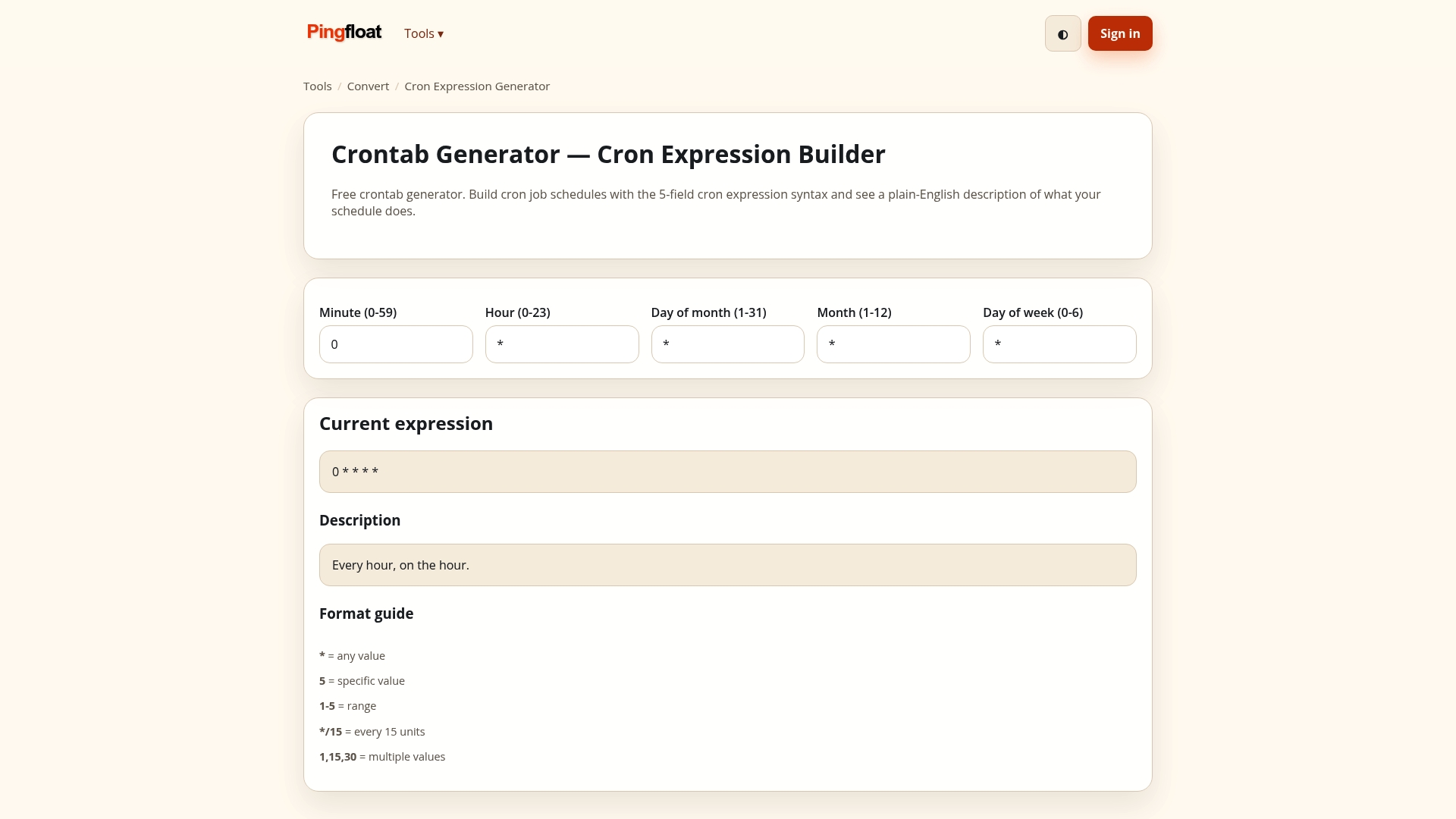
It's built for exactly the moments this article covers: confirming where a path breaks down, checking PTR and hostname data against what your CLI trace shows, or grabbing a quick shareable result when you're handing a problem off to another engineer or an ISP. Running both a CLI trace and a browser trace side by side is a simple way to rule out anything specific to your own machine's network stack. Pingfloat's broader suite of tools also covers uptime monitoring, SSL checks, and DNS reference material, all free, so once a path issue turns into a question about whether a server is actually reachable or its certificate is valid, the uptime monitor and SSL checker pick up where traceroute leaves off. Open the traceroute tool and run your next trace directly from the browser.
Sources
It pairs well with Pingfloat's reference material. If a hop shows a raw IP with no hostname, the IP address reference explains addressing basics behind what you're looking at, and the DNS reference covers why PTR records exist and why so many routers never bother configuring them. When you're building an evidence package for an ISP ticket, capturing a browser trace alongside your CLI output gives you two independent confirmations of the same path.
- traceroute(8) - Linux manual page
- How to use TRACERT to troubleshoot TCP/IP problems in Windows
- traceroute(8) — Linux manual pages
FAQ
How Do I Interpret Traceroute Results?
Read each hop's three RTT values together rather than in isolation. Consistent values across all three probes at a hop mean that router is behaving normally, while a sustained increase that carries through to the final hop, not just one isolated spike, points to a real problem worth escalating.
What Does an Asterisk (*) Mean in Traceroute Output?
An asterisk means that probe got no reply before the timeout expired. A single asterisk mixed among responses is usually harmless and often reflects a router policy that deprioritizes ICMP replies rather than an outage, but asterisks that continue unbroken from one hop to the destination indicate a genuine reachability failure.
What Is the Difference Between Tracert and Traceroute?
They're the same diagnostic concept implemented differently by operating system. Windows tracert uses ICMP echo requests with incrementing TTLs, while traceroute on Linux and macOS defaults to UDP packets aimed at unreachable ports, with options to switch to ICMP or TCP probing instead.
What Replaced Traceroute?
Nothing has replaced traceroute for one-time path mapping, but mtr (My Traceroute) extends it for ongoing monitoring by combining continuous probing with packet-loss and jitter statistics over time. For quick checks without installing anything, Pingfloat's browser-based traceroute tool offers the same core path mapping from any device.
Can I Run a Traceroute Without Installing Software?
Yes. Pingfloat's traceroute tool runs directly in the browser and requires no account or installation, which makes it useful for a quick check or for sharing results with someone who doesn't have command-line access.