

A user agent string is the value of the HTTP User-Agent header, sent with nearly every web request to identify the requesting client, whether that's a browser, a bot, or a command-line tool. This article breaks down the canonical format defined in MDN's User-Agent reference, gives real browser and bot examples, and walks through parsing code plus the shift toward Client Hints.
TL;DR:
- User agent strings are increasingly capped or frozen in detail, making them unreliable for precise device or browser detection.
- Parsing libraries like UAParser.js and the
user-agentspackage are essential for extracting structured data from UA strings, especially in server environments.- Spoofing UA strings is trivial, so using them as the primary means of verification is insecure; layering with IP verification and behavioral analysis is recommended.
- Browser and bot detection should focus on feature detection, behavioral checks, and reverse DNS verification instead of solely relying on user agent strings.
- Free tools like Pingfloat’s UA Detector and Response Headers Inspector help confirm the exact strings browsers send and what servers receive during debugging.
Table of Contents
- What Does a User Agent String Format Actually Mean?
- What Do Real Browser User Agent Strings Look Like?
- How Do You Identify Bots and CLI Tools From Their UA Strings?
- How Do You Read and Parse a User Agent String in Code?
- Should You Still Sniff User Agents, or Switch to Feature Detection?
- Which Tools Should You Use to Parse and Test UA Strings?
- What I've Learned From UA-Based Bugs in Production
- Verify and Parse UA Strings With Pingfloat's Free Tools
- Sources
What Does a User Agent String Format Actually Mean?
Open your browser's dev tools and you'll see something like Mozilla/5.0 (Windows NT 10.0; Win64; x64) AppleWebKit/537.36 (KHTML, like Gecko) Chrome/131 Safari/537.36. It looks like gibberish stacked on gibberish, but every chunk has a job. The MDN specification describes the general shape as a product token followed by a comment in parentheses, repeated for each layer of software involved in rendering the page.
Here's what each piece typically represents:
- Mozilla/5.0: A legacy compatibility token almost every browser still sends, dating back to the Netscape era.
- Platform comment: The text inside the first parentheses, showing OS and architecture (
Windows NT 10.0; Win64; x64). - Engine token:
AppleWebKit/537.36orGecko/20100101, naming the rendering engine and its version. - Browser/version: The actual browser name and build number, like
Chrome/131. - Compatibility tokens: Trailing strings like
Safari/537.36that exist purely so older servers checking for that string don't break.
Variability shows up most in the platform comment and in how many "impersonator" tokens get stacked on. That's the direct result of decades of servers making assumptions about which strings meant "modern browser."
What Do Real Browser User Agent Strings Look Like?
Chromium-based browsers, Gecko (Firefox), and WebKit (Safari) each build their strings a little differently, and knowing the pattern for each family saves you from guessing during debugging. On iOS, every browser, including Chrome and Firefox, has to route through WebKit, so an iOS Chrome UA still carries Safari and Version/ tokens even though the user never opened Safari.
Windows strings use Windows NT 10.0, while macOS strings use an underscore format like Mac OS X 10_15_7, a quirk that trips up regex-based parsers constantly. Chrome has also started freezing parts of its UA string, capping the reported version and platform detail rather than reflecting the exact build, which the Http documents alongside dozens of other real-world examples.
| Browser | Engine family | Example UA string | Key identifying token |
|---|---|---|---|
| Chrome (Windows) | Blink | Mozilla/5.0 (Windows NT 10.0; Win64; x64) AppleWebKit/537.36 (KHTML, like Gecko) Chrome/131 Safari/537.36 | Chrome/131 |
| Firefox (Windows) | Gecko | Mozilla/5.0 (Windows NT 10.0; Win64; x64; rv:13) Gecko/20100101 Firefox/13 | Firefox/13 |
| Safari (macOS) | WebKit | Mozilla/5.0 (Macintosh; Intel Mac OS X 10_15_7) AppleWebKit/605.1 (KHTML, like Gecko) Version/ Safari/605.1 | Version Safari |
| Edge (Windows) | Blink | Mozilla/5.0 (Windows NT 10.0; Win64; x64) AppleWebKit/537.36 (KHTML, like Gecko) Chrome/131 Safari/537.36 Edg | Edg |
| Chrome (iOS) | WebKit (forced) | Mozilla/5.0 (iPhone; CPU iPhone OS like Mac OS X) AppleWebKit/605 (KHTML, like Gecko) CriOS/131 Mobile Safari | CriOS/131 |
Notice that Edge's UA is basically Chrome's with Edg/ tacked on at the end. That's the compatibility-token pattern in action: Edge wants sites built for Chrome to keep working, so it identifies as Chrome first and itself second. Full reference tables for these patterns, including less common browsers, live on Pingfloat's browser user agent reference.
How Do You Identify Bots and CLI Tools From Their UA Strings?
Automated traffic tends to announce itself with short, distinctive tokens instead of the layered browser format. Googlebot's canonical string looks like Mozilla/5.0 (compatible; Googlebot/2.1; +http://www.google.com/bot.html), and that trailing contact URL isn't decoration. It's a convention search engines and legitimate crawlers follow specifically so operators can verify who's hitting their servers.
Common examples you'll run into in server logs:
- Googlebot:
Mozilla/5.0 (compatible; Googlebot/2.1; +http://www.google.com/bot.html) - Bingbot:
Mozilla/5.0 (compatible; bingbot/2.0; +http://www.bing.com/bingbot.htm) - Twitterbot:
Twitterbot/1.0 - curl:
curl/8.4.0 - Python requests:
python-requests/2.31.0
The contact URL convention matters for one reason: it gives you a starting point for verification, not proof. A UA string is just a self-reported claim, and spoofing it is trivial for anyone with a browser extension or a single line of code. Treat these strings as a first-pass filter, never as authentication. Pingfloat's crawler identification reference covers the IP verification steps that actually confirm a bot is who it claims to be.
How Do You Read and Parse a User Agent String in Code?
Getting the UA string is the easy part. In the browser console, navigator.userAgent returns the current session's string directly, per MDN's Navigator.userAgent documentation:
console.log(navigator.userAgent);
// "Mozilla/5.0 (Windows NT 10.0; Win64; x64) AppleWebKit/537.36..."
On the server, the same string arrives in the request headers, accessible as req.headers['user-agent'] in Node.js or request.headers.get('User-Agent') in most Python frameworks.
Parsing it reliably takes more than string-splitting. Here's a practical path:
- Use a maintained parser library. In Node.js,
UAParser.jsreturns structured objects:{ browser: { name: 'Chrome', version: '131.0.0.0' }, os: { name: 'Windows', version: '10' } }. In Python, theuser-agentspackage gives you.is_mobile,.browser.family, and.os.familyas clean attributes. - Avoid hand-rolled regex for production. A quick pattern like
/Chrome\/([\d.]+)/will match Edge and Opera too, since both include a Chrome token for compatibility. - Request Client Hints for granular data. Send
Accept-CH: Sec-CH-UA-Platform, Sec-CH-UA-Modelin your response headers, and supporting browsers will include structuredSec-CH-UAvalues on subsequent requests instead of relying on the frozen UA string.
Pro Tip: Never trust a single regex match against a raw UA string in a production codebase. Pull the exact header value with a tool like Pingfloat's Response Headers Inspector first, so you're debugging against the real string your server received, not the one you assumed it sent.
Should You Still Sniff User Agents, or Switch to Feature Detection?
UA sniffing breaks for three predictable reasons: strings get spoofed, Chrome and Firefox now freeze or cap parts of the string, and platform quirks (like iOS forcing every browser through WebKit) make brand-based checks unreliable. The fix isn't a smarter regex. It's checking for the capability you actually need.
- Instead of checking for "Safari," test
if (typeof window.showOpenFilePicker === 'function')before using that API. - Instead of branching on "Chrome," target engine tokens like
GeckoorWebKitonly when a genuine engine-level workaround is unavoidable. - Instead of trusting a bot's self-reported UA, layer in reverse DNS verification against the crawler's published IP ranges.
The privacy angle matters just as much as the reliability one. Combinations of UA tokens contribute meaningfully to browser fingerprinting, which is exactly why MDN's user-agent reduction guidance pushes browsers toward frozen strings and opt-in Client Hints rather than broadcasting full detail by default.
Bot detection that actually holds up in production stacks three layers: UA heuristics as a cheap first filter, IP or reverse DNS verification against the provider's published ranges, and behavioral scoring or a JS challenge for anything that doesn't clear the first two. Relying on the UA string alone is the layer most likely to let a spoofed crawler through.
Which Tools Should You Use to Parse and Test UA Strings?
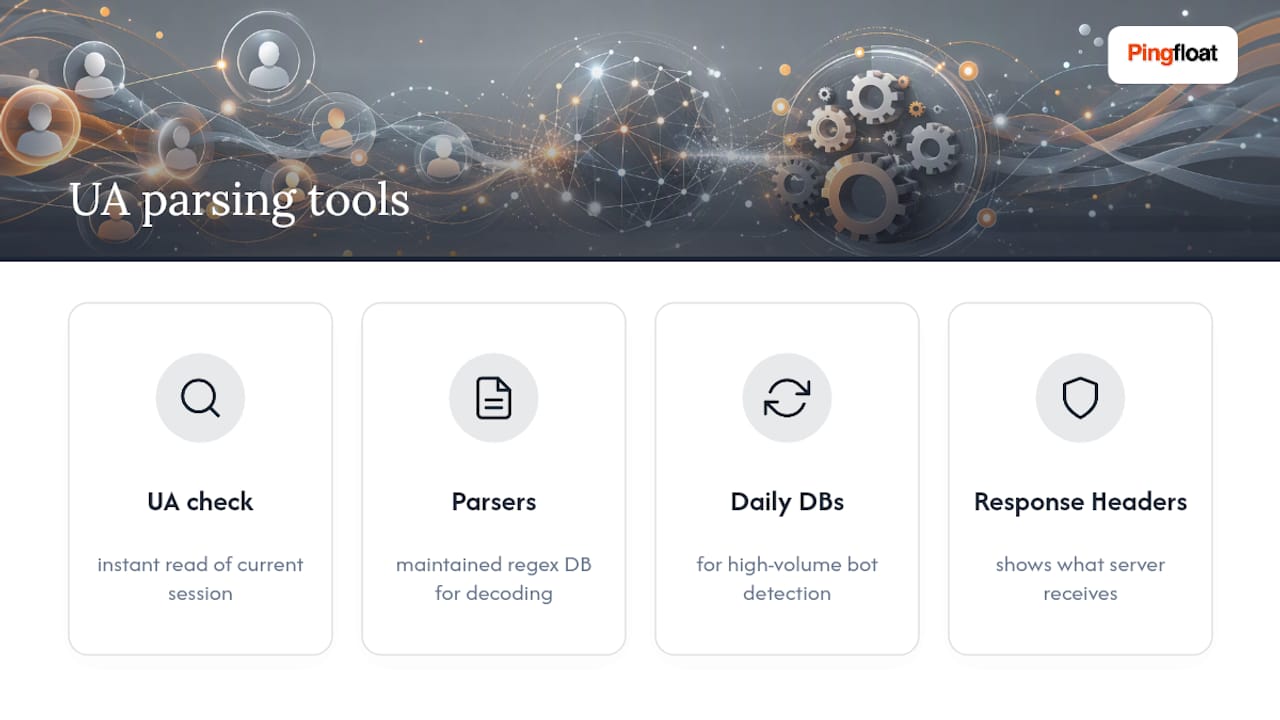
You've got four practical categories to pick from, and none of them require building your own parser from scratch. "What's my UA" tools give you an instant read on your current session, useful for confirming what your own browser is actually sending before you debug anything server-side. Parser libraries like ua-parser-js and the Python user-agents package handle the structured decoding, with maintained regex databases updated as new browser versions ship, a real advantage over anything you'd hand-roll. Daily-updated UA databases matter if you're running high-volume bot detection, since new crawler signatures appear constantly.
For quick, no-setup checks, Pingfloat's What's My User Agent tool detects and parses your current browser's string on the spot, and the Response Headers Inspector shows you exactly what your server is receiving in real time.
What I've Learned From UA-Based Bugs in Production
Most UA-related incidents trace back to one root cause: a browser check written for one version quietly breaking two years later when that browser's string changed shape. Feature detection and Client Hints exist precisely to stop that pattern before it starts.
— Andreas
Verify and Parse UA Strings With Pingfloat's Free Tools
Reading about UA parsing only gets you so far. At some point you need to see the exact string your own setup is sending, or confirm what a server is actually receiving versus what you assumed. There are free suites of developer tools that turn "I think this is the UA string" into "here's the UA string, parsed."
Start with What's My User Agent to see your current browser's exact string and its parsed browser, engine, and OS fields, no signup required. If you're debugging server behavior that depends on request headers, pair it with the Response Headers Inspector to confirm what your backend is actually reading. Both tools are free to use right now, whether you're chasing a bot-detection false positive or just confirming why a layout looks wrong on one specific browser build.