
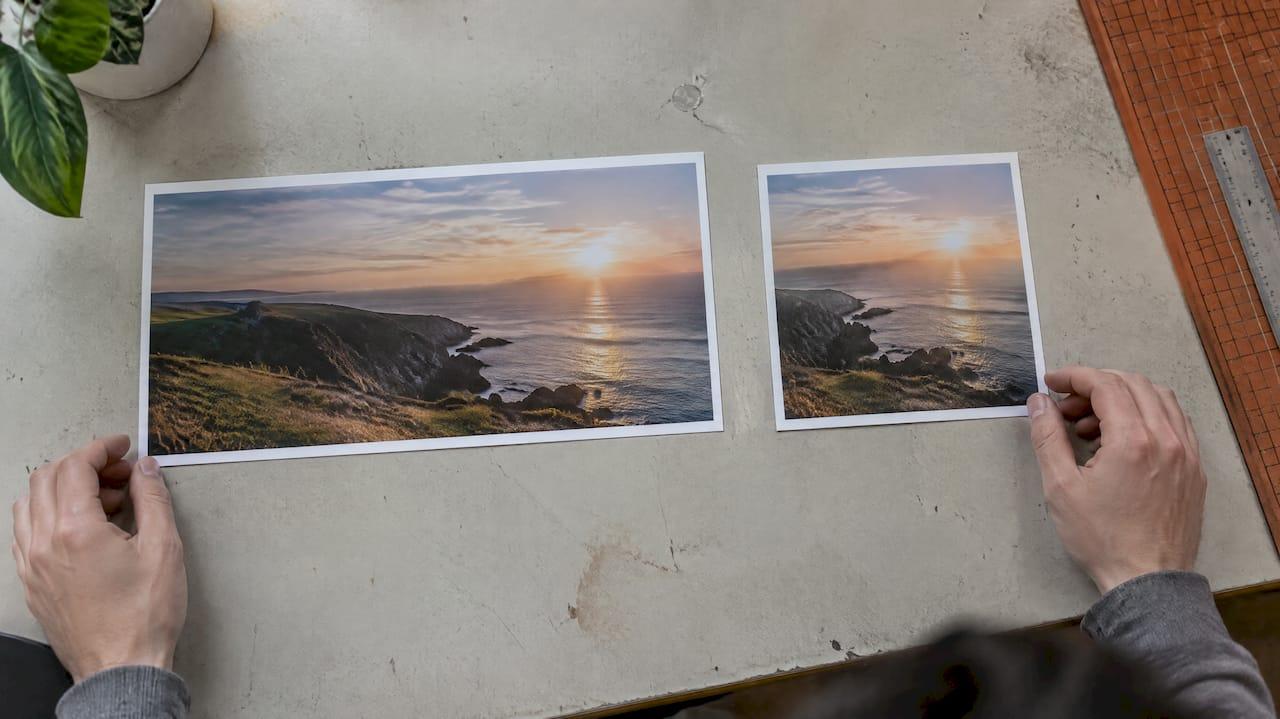
Use a 1200 × 630 pixel image with a 1.91:1 aspect ratio for your og:image, saved as a JPG or PNG and kept well under 1 MB. That one file displays cleanly on Facebook, LinkedIn, X, Slack and most messaging apps. The rest of this guide covers the limits of each platform, where to keep text so crops don't cut it, which tags to add, and how to check the result before you publish.
TL;DR
- Size: 1200 × 630 pixels, ratio 1.91:1. Facebook says its minimum is 200 × 200 and its file limit is 8 MB, but those are floors, not targets.
- Format: JPG or PNG are the safe choices. WebP works on most platforms, AVIF does not.
- Weight: aim for under 300 KB if WhatsApp matters to you, and never above 1 MB.
- Tags: set
og:image,og:image:width,og:image:heightandog:image:alt, with an absolute HTTPS URL. - Testing: preview the page after every change, because platforms cache old images.
Table of Contents
- The short answer: 1200 × 630 pixels
- Sizes and limits by platform
- Aspect ratio, cropping and the safe zone
- File format and file size
- The tags that go with the image
- What makes a preview image work
- Test before you publish, and again after you change it
- Perspective
- Check your OG image with Pingfloat
- Common OG image mistakes
- FAQ
- Sources
The short answer: 1200 × 630 pixels
The Open Graph protocol, created for turning web pages into rich objects on social platforms, defines the og:image property and leaves the exact dimensions to each platform. In practice the platforms have converged on one shape: a wide landscape rectangle at about 1.91:1. At 1200 × 630 that ratio is 1.905, which is as close as a whole-pixel size gets.
Why this size wins:
- It is large enough to look sharp on high-density screens when a platform shows a big card.
- It matches the ratio Facebook asks for, so Feed shows the full picture without cropping. Facebook's guidance, as summarized here, recommends at least 1200 × 630 for the best display and at least 600 × 315 for the larger link-card layout.
- LinkedIn recommends the same 1.91:1 landscape ratio for link previews.
- X accepts it comfortably. Its large summary card takes a 2:1 ratio, so a 1.91:1 image shows with only a sliver trimmed from the edges.
If you only remember one thing, remember this: design at 1200 × 630, keep important content in the middle, export a compact file.
Sizes and limits by platform
Platforms publish different minimums, maximums and ratios. The table collects the figures worth knowing. Treat the recommended column as your design target and the limits as the edge where things break.
| Platform | Recommended | Minimum | Max file size | Ratio |
|---|---|---|---|---|
| 1200 × 630 px | 200 × 200 px (600 × 315 for a large card) | 8 MB | about 1.91:1 | |
| 1200 × 627 px | not published in our sources | 5 MB | 1.91:1 | |
| X (summary_large_image) | 2:1 images | 300 × 157 px | under 5 MB (max 4096 × 4096 px) | 2:1 |
| 1200 × 630 px | n/a | about 300 KB for reliable previews | 1.91:1 | |
| Slack, Discord, Teams | 1200 × 630 px | n/a | keep under 1 MB | 1.91:1 |
The Facebook figures come from the guidance as summarized by Metro Publisher. The X numbers (2:1 ratio, 300 × 157 minimum, 4096 × 4096 maximum, under 5 MB, SVG not supported, only the first frame of an animated GIF used) are listed in this developer documentation. Platforms change these rules without notice, so use them as a guide and check each platform's own documentation when a figure matters.
Facebook link image size
Searches for a Facebook link image size usually come from someone whose picture is being shrunk, cropped or replaced. Facebook shows a large card when your image is at least 600 × 315 pixels. Below that, you get a small thumbnail beside the title. Between 200 × 200 and 600 × 315 the image is accepted but displayed small.
To get the full image in Feed with no cropping, stay close to 1.91:1. A square image or a tall portrait will be cropped to fit the card, and the crop is not under your control.
If Facebook seems to ignore your image and picks another one from the page, the usual causes are a blocked or slow image URL, an image below the minimum, or a stale cache. We cover those in our guide to curl and debugger checks that fix og:image issues.
LinkedIn wants the same landscape shape. A 1200 × 627 image at 1.91:1 and a file under 5 MB is the commonly cited recommendation, per a community-maintained reference. Your 1200 × 630 file is within a few pixels of that and renders the same way.
X (formerly Twitter)
X reads twitter:card and twitter:image first and falls back to Open Graph tags. For the large image card, set twitter:card to summary_large_image. The card is 2:1, so a 1.91:1 image loses a thin strip. That is why a margin around your text matters.
WhatsApp and other messengers
Messaging apps are the fussiest. WhatsApp previews are most dependable when the image stays around 300 KB or smaller. A 2 MB hero photo might preview fine on Facebook and silently vanish in a WhatsApp chat. If your audience shares links in group chats, weight matters as much as dimensions.
Aspect ratio, cropping and the safe zone
Every platform crops differently, and some change the crop between desktop, mobile and chat apps. Design for the worst case: assume the outer edge of your image may be trimmed, and that a few contexts will show a square or small thumbnail.
A practical layout:
- Start with a 1200 × 630 canvas.
- Draw a safe zone of about 1080 × 600 centered on the canvas, which leaves roughly 60 px at the sides and 15 px top and bottom. This matches a safe-zone guideline popular among designers.
- Put the headline, logo and any faces inside it.
- Keep text large. Previews are often displayed at a third of their native size, so anything under about 40 px tall is unreadable on a phone.
- For thumbnail layouts, check that the image still reads when cropped to a centered square of 630 × 630.
This last check is the one most teams skip. In a square crop the left and right 285 px disappear, so a logo tucked in a corner or a headline running edge to edge is gone.
File format and file size
Can an OG image be a JPG? Yes, and JPG is the safest default. Testing of twelve platforms and apps, including WhatsApp, Telegram, Slack, Discord, Teams, Facebook, LinkedIn, Bluesky, Threads and Mastodon, found that all of them support JPEG and PNG. All but Xing also support WebP. Only Facebook handled AVIF, and WhatsApp showed AVIF with broken colors.
So the rules are:
- JPG for photos and complex artwork. Quality 75 to 85 usually gives a good balance.
- PNG for flat graphics, logos and screenshots with sharp text. Run it through compression so it doesn't balloon.
- WebP is fine if you can accept the rare platform that ignores it. For a link you want to work everywhere, use JPG or PNG.
- AVIF and SVG: avoid both for OG images.
- Animated GIF: X uses only the first frame, so don't rely on motion.
On weight, think in tiers. Under 300 KB is the comfort zone for messengers. Under 1 MB is acceptable for everything else. The official ceilings of 5 MB and 8 MB are limits you should never come near.
Need to resize or convert a file? Our image resizer and converter handles PNG, JPG, WEBP and PDF in the browser, so you can export a 1200 × 630 JPG without opening a design app.

The tags that go with the image
The image file is only half the job. The tags tell crawlers where it lives and how big it is, which lets platforms render the card on the first scrape instead of downloading the file just to measure it. According to the Open Graph protocol, og:image:width and og:image:height give the pixel dimensions, and og:image:alt describes the image. A solid baseline looks like this:
<meta property="og:title" content="Your page title" />
<meta property="og:description" content="One clear sentence about the page." />
<meta property="og:url" content="https://example.com/page/" />
<meta property="og:type" content="article" />
<meta property="og:image" content="https://example.com/images/og-card.jpg" />
<meta property="og:image:width" content="1200" />
<meta property="og:image:height" content="630" />
<meta property="og:image:alt" content="Short description of the image" />
<meta name="twitter:card" content="summary_large_image" />
The basic card properties are og:title, og:description, og:url and og:type, with the image tags added on top.
A few habits prevent most failures:
- Use an absolute URL starting with
https://. Relative paths are a common reason an image never appears. - Make sure the image URL is publicly reachable. A file behind a login, a firewall or hotlink protection returns nothing to the crawler.
- Put the tags in the
<head>of the server-rendered HTML. Crawlers generally don't run your JavaScript. - Use a stable, real file rather than a data URI. If you are curious why, see our note on data URI images.
For a fuller walk-through of each property, read what Open Graph tags are and how to implement them. Teams handling image metadata at scale can also look at this visual content SEO checklist for the technical side of image markup.
On your regular page images, the same dimension logic applies in a different way: declare sizes so layouts don't shift. See how to fix images missing width and height attributes and srcset descriptors missing sizes. Those are separate from OG tags, but the same discipline covers both.
What makes a preview image work
A correct size gets the card to appear. A good design gets it clicked. These habits hold up across platforms:
- One idea per image. A short headline of about six words, or a single clear visual. Crowded cards fail at thumbnail scale.
- High contrast. Dark text on a light field, or the reverse, with no busy photo behind the type.
- Brand cue in the same place. A small logo in a consistent spot builds recognition in a feed.
- Don't repeat the title word for word. The platform prints your
og:titleunder the image. Use the image to add context, not echo. - Unique images per page where you can. A site-wide fallback is better than nothing, but a page-specific image earns more attention.
- Write real alt text. It helps accessibility and gives some platforms a description to show.
A quick example: a post titled "How to Check an SSL Certificate" could carry an image with a padlock icon, the words "SSL check" at 80 px, and the logo bottom-left, all inside the safe zone. The title below the image handles the full wording.
Test before you publish, and again after you change it
Platforms cache previews. If you replace an image at the same URL, the old one may keep showing until you force a re-scrape with the platform's debugging tool. Two ways around it: use a new filename whenever you change the image, and check the preview with a debugger.
A simple routine:
- Publish the page with the final tags.
- Run the URL through an Open Graph checker to confirm the tags, the resolved image and its dimensions.
- Re-scrape on Facebook and LinkedIn if the page was shared before.
- Send the link to yourself in WhatsApp or Slack and look at it on a phone.
- Check the raw tags with a meta tag checker to catch duplicates, missing fields or conflicting values.
If you manage many pages, the broader approach is in our guide to fixing meta tags that affect click-through and indexing.
Perspective
We look at OG images from the angle of someone who has to debug them. Most preview problems we see are not design problems. They are delivery problems: an image that is too heavy, a URL that redirects, a tag that is missing from the rendered HTML, or a cache that still holds last month's picture.
That is why we think the order of work should be: pick 1200 × 630, export a light JPG or PNG, write the tags with explicit width and height, and then verify with a checker rather than trusting that it worked. A minute of checking beats a week of a broken preview on a launch post.
We built our Open Graph Checker and Meta Tag Checker to be free and instant, with no installation, because this is a check you want to run every time, not once a quarter. If you run it before a campaign goes out, you will rarely meet the problems described above.
Andreas
Check your OG image with Pingfloat
Pingfloat offers a free suite of web tools for developers and IT professionals. For this job, the Open Graph Checker shows the tags and image a crawler finds on your page, and the image converter helps you export the right size and format.
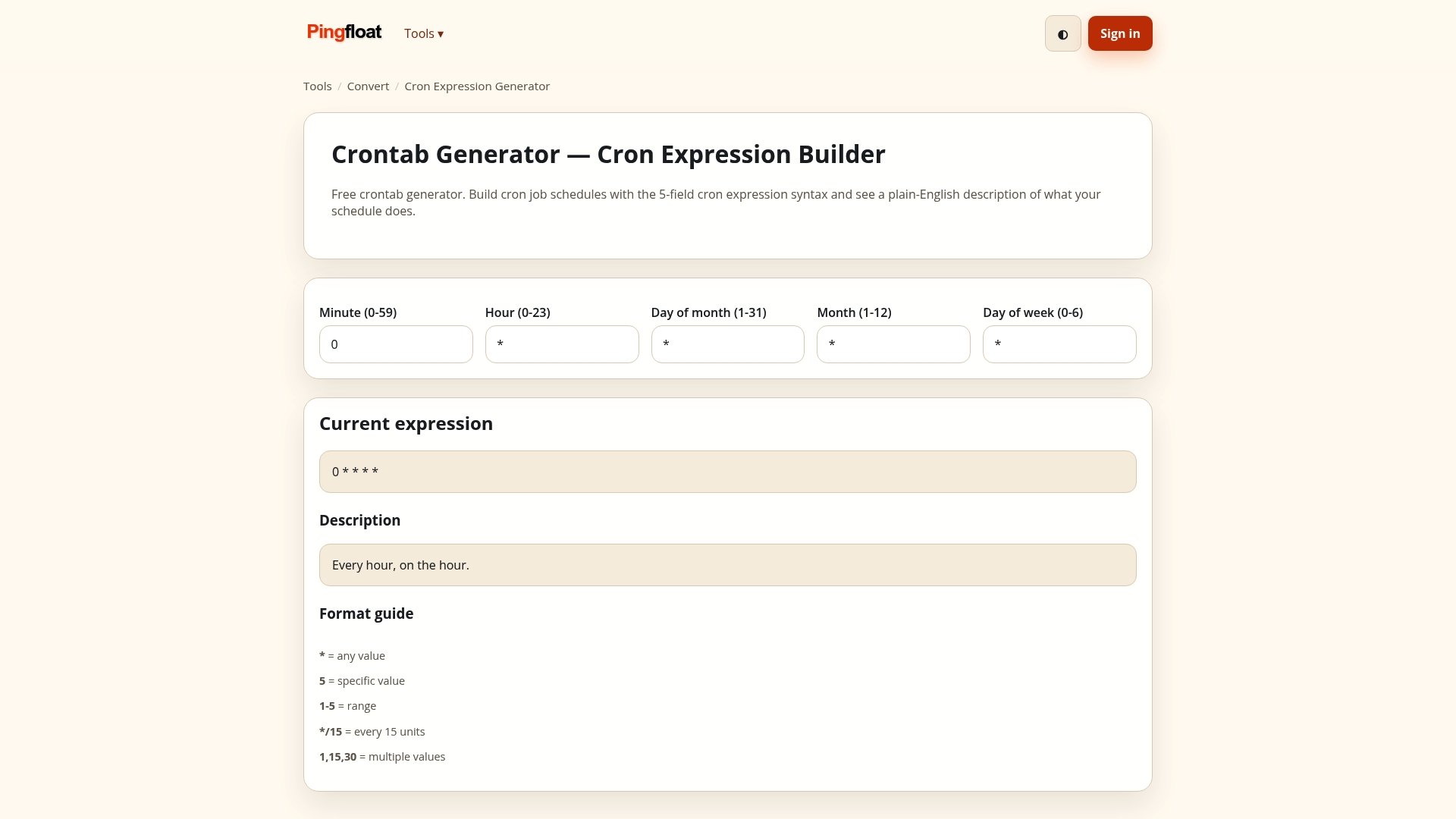
The same toolkit includes an uptime monitor, an SSL checker and a QR code generator, so your launch checks can live in one place. Browse everything on the Pingfloat homepage.
Common OG image mistakes
| Mistake | What happens | Fix |
|---|---|---|
| Image under 200 × 200 px | Facebook may ignore it | Export at 1200 × 630 |
| Square or portrait image | Cropped unpredictably | Use 1.91:1 landscape |
| Text near the edges | Cut off on X or in thumbnails | Keep it in the center safe zone |
| 3 MB file | Missing in WhatsApp | Compress to under 300 KB |
| AVIF or SVG file | Blank preview on many platforms | Use JPG or PNG |
| Relative image URL | No image found | Use an absolute HTTPS URL |
| Same URL, new image | Old preview still shows | Rename the file, then re-scrape |
FAQ
What is the maximum size for an OG image?
Facebook allows up to 8 MB, while LinkedIn's cited limit is 5 MB and X's is under 5 MB. For real-world reliability, keep the file under 1 MB, and under about 300 KB if people will share it in WhatsApp.
What is the aspect ratio of an OG image?
The standard is 1.91:1, which is 1200 × 630 pixels. X's large card uses 2:1, so a 1.91:1 image loses a thin strip at the edges there. Keeping text in the center avoids any visible damage.
Can an OG image be a JPG?
Yes. JPG and PNG are supported by every platform tested, which makes them the safest choices. WebP works on most platforms, but AVIF and SVG are unreliable, so avoid them for link previews.
Why does Facebook show a different image than the one I set?
The most common causes are an image below the size minimum, an unreachable image URL, or a cached version of an older scrape. Fix the file or the URL, then use a debugger to refresh the cache.
Sources
- The Open Graph protocol
- Preview Image Settings for Social Media, Metro Publisher
- Configure your website's image meta tags for social previews, HubSpot Knowledge Base
- Drupal Social Share, idfive Developer Documentation
- chuckreynolds/social-profile-image-sizes, GitHub
- Open Graph Meta Tags: Copy-Paste Reference, ThatDevPro
- Open Graph images: Format compatibility across platforms, Darek Kay
- OG Image Sizes 2026 guide, Krumzi
- How to Write OG Tags That Drive Social CTR, Seography