

Flush your local DNS cache and restart your network stack, switch to a known public resolver like 8.8.8.8 to rule out a bad local server, and run a quick dig or nslookup query to confirm whether any server responds at all. If all three fail, work through the layered flow below, which moves from your device to the resolver, the authoritative servers, and finally the transport layer, and escalate with the exact command output in hand.
TL;DR:
- Compare default and public resolver answers; mismatches suggest stale caching or split horizon DNS, while +trace identifies the delegation hop that stops responding.
- If a normal query returns SERVFAIL but dig +cd succeeds, investigate DNSSEC validation and repair the chain rather than disabling validation permanently.
- Compare small and large UDP responses, then test TCP; if larger replies fail too, inspect firewalls for blocked TCP traffic on port 53.
- Check authoritative records, name server glue, domain renewal status, and resolver settings separately, because failures at each layer require fixes from different providers or registrars.
- After changes, rerun queries against multiple resolvers and confirm consistent NOERROR responses and expected TTLs; log timestamps and retain full output for escalation.
Table of Contents
- Quick triage checklist you can run in 5 to 10 minutes
- Diagnostic tools and commands worth capturing
- Step-by-step troubleshooting flow from device to transport
- DNSSEC, EDNS, and transport checks that isolate protocol failures
- Common causes and direct fixes
- Verify the fix and prevent recurrence
- Mapping Pingfloat tools to each step of the flow
- What reduces incident response time more than any single tool
- Confirm recovery with free diagnostic and monitoring tools
- FAQ
- Sources
Quick triage checklist you can run in 5 to 10 minutes
Before touching any DNS configuration, confirm you have a network problem versus a name resolution problem. Pinging a public IP address directly, bypassing any hostname, tells you immediately whether the issue is connectivity or DNS. Once you've isolated it to DNS, work through these steps in order:
- Flush your local cache. On Windows run
ipconfig /flushdns, on most Linux distributions runresolvectl flush-caches, and on older systemd-resolved setups trysudo systemd-resolve --flush-caches. - Switch your resolver. Point your device or router at
8.8.8.8or another public resolver and re-query the failing name. - Test from a clean environment. Try another device on a different network, and temporarily disable antivirus or web-filtering software that might intercept queries.
- Log everything. Record exact error text and timestamps before you change anything else, since some symptoms are intermittent and the evidence disappears once you "fix" it.
This checklist resolves a large share of everyday complaints, particularly corrupted local caches and misbehaving security software, which HP's troubleshooting guide lists among the most common fixable causes.
Diagnostic tools and commands worth capturing
When the quick checklist doesn't fix things, you need output you can actually read and compare. A handful of commands cover almost every scenario:
dig @8.8.8.8 example.com Aqueries a specific resolver directly, bypassing whatever is configured locally.dig +trace example.comwalks the full delegation chain from the root down to the authoritative server, showing exactly where resolution breaks.dig +tcp example.comforces the query over TCP instead of UDP, useful for spotting firewalls that block large UDP responses.dig example.com TXT +notcp +bufsize=512forces a small UDP buffer, which helps isolate fragmentation issues on records with large responses like TXT.nslookup example.com 8.8.8.8on Windows gives a similar result todigbut with a terser, less detailed output; it's useful for a fast check but won't show flags like TC or AD.
Pay attention to the "SERVER" line in the output: it tells you which resolver actually answered, which matters when you suspect a stale or split-horizon configuration. The response flags matter just as much: NOERROR means the query succeeded, NXDOMAIN means the name doesn't exist, SERVFAIL points to a server-side failure or validation problem, and a TC flag means the response was truncated and needs a TCP retry.
When dig queries time out intermittently, run a traceroute or MTR alongside them to check for packet loss on the path. Transport problems between your network and the resolver can look identical to a dead name server.
Pro Tip: Always save the complete command output, not just the final answer line. The timestamp, the responding server's IP, and the flags together tell a much more useful story than the resolved address alone.
Step-by-step troubleshooting flow from device to transport
Work through these layers in order, confirming or ruling out each before moving to the next.
- Device layer. Check your hosts file for stale manual entries, confirm the local resolver service is actually running, flush the cache again, and try the same lookup from a second device to rule out a machine-specific problem.
- Resolver layer. Query a public resolver directly with
dig @1.1.1.1 example.comand compare the answer against your default resolver's response. A mismatch often points to a stale cache entry or a split-horizon setup where internal and external queries get different answers. - Authoritative layer. Query the domain's authoritative servers directly:
dig @ns1.example.com example.com SOAanddig @ns1.example.com example.com NS. Then rundig +trace example.comto walk the delegation path and find exactly which hop fails to answer. - Transport layer. Compare a small UDP response against a large one using
+bufsize=512versus the default, then force TCP with+tcp. If small UDP queries succeed but large ones and TCP both fail, a firewall blocking port 53 over TCP is a likely cause, something RFC 8906 flags as a common cause of servers appearing to "fail to respond" when they're actually just unreachable over a given transport. - Escalation. If the problem traces back to the authoritative side, your resolver's provider, or your ISP, send them the full command output: the exact
digqueries, timestamps, the responding server IPs, and a traceroute showing the path. Vague descriptions like "DNS is down" rarely get useful responses; raw output does.
DNSSEC, EDNS, and transport checks that isolate protocol failures
A SERVFAIL response doesn't always mean a server is broken. Run the same query with dig +cd example.com (checking disabled) alongside your normal query; if the +cd version succeeds while the normal one fails, you're looking at a DNSSEC validation failure in the chain, not a dead server.
- Compare
dig example.com +notcp +bufsize=512against a normal query to see if large EDNS responses are getting dropped somewhere in the path. - Force
dig +tcp example.comto check whether a firewall is blocking TCP/53 specifically, which only shows up once a response exceeds the UDP size limit. - Remember that RFC 8906 documents server silence and transport failures as a frequent, often misdiagnosed operational problem, since a timeout looks identical whether caused by packet loss, a firewall, or an actual server outage.
Resist the urge to disable DNSSEC validation as a permanent fix. Gather the +cd evidence first, then correct the actual chain, whether that means fixing a key rollover, a missing DS record, or expired signatures.
Common causes and direct fixes
Most DNS incidents trace back to a small set of recurring root causes:
- Corrupted local cache: flush it and restart the resolver service rather than just the browser.
- Wrong resolver configured: check
/etc/resolv.confor your DHCP settings for a stale or unreachable address. - Misconfigured NS or A records: verify the zone at your registrar or DNS host and confirm with
digagainst the authoritative servers directly. - Stale glue records: registries sometimes carry outdated glue entries in TLD zone files, which can point resolvers at invalid name server IPs and require registrar or registry-level correction.
- Expired domains: check WHOIS and your registrar dashboard; a lapsed renewal or billing hold looks identical to a DNS outage from the outside.
Each of these has a different owner, which is why isolating the layer first (device, resolver, authoritative, or registry) saves time over guessing.
Verify the fix and prevent recurrence
Once you've made a change, don't declare victory on a single successful query. Re-run your dig commands against multiple resolvers and confirm you get a consistent NOERROR response with the TTL you expect.
- Set an uptime or DNS-specific monitor to alert you automatically if resolution starts failing or TTLs shift unexpectedly.
- Lower your TTL before any planned change, then raise it again once you've confirmed the new records are stable everywhere.
- Keep a change log with timestamps and a rollback plan for every DNS edit, however small.
- Document your authoritative server IPs and aim for topological diversity across different networks, so a single upstream failure doesn't take down resolution entirely.
Mapping Pingfloat tools to each step of the flow
Several of the diagnostics above map directly onto tools we built for exactly this kind of work. After a dig timeout suggests packet loss rather than a dead server, run our traceroute tool to see which hop is actually dropping packets. Once you've applied a fix, a scheduled check through our uptime monitor confirms the recovery holds and flags any regression. Our What's My IP lookup helps you confirm quickly whether a failure is isolated to your device, your ISP, or genuinely global.

What reduces incident response time more than any single tool
Keeping a reproducible checklist and capturing evidence before changing anything cuts resolution time more than any single command does. Automating routine DNS checks and documenting TTLs ahead of planned changes catches problems before users notice them. When you're unsure, pull authoritative-server dig output and a traceroute before escalating, since that's usually the first thing anyone downstream will ask for.
— Andreas
Confirm recovery with free diagnostic and monitoring tools
Once you've worked through the flow above, confirming the fix holds matters as much as finding it. We built our traceroute and uptime monitor tools to match exactly the checks this guide walks through, free to run, with no account needed to get a result.
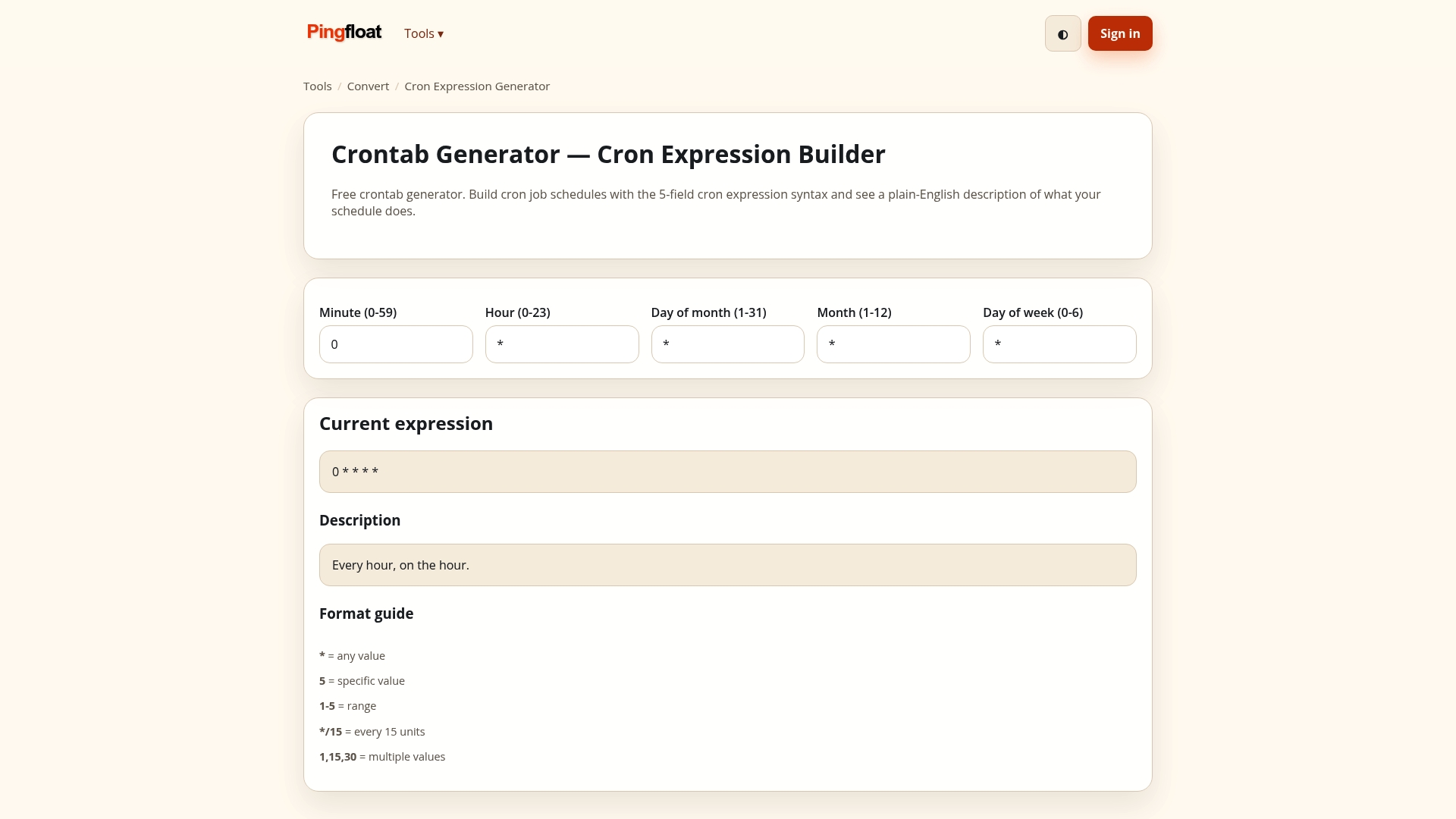
If you've just pushed a DNS change or fixed a delegation issue, run a free traceroute now to confirm the path is clean, or set up a basic uptime check so you'll know the moment resolution breaks again instead of waiting for a user complaint.
FAQ
How do I fix DNS settings?
Start by flushing your local DNS cache and confirming your device is pointed at a working resolver, either your ISP's or a public one like 8.8.8.8. If the problem persists, check your hosts file for stale entries and verify the domain's actual records with dig against its authoritative servers.
What is DNS propagation?
DNS propagation is the delay between updating a DNS record and that change being visible everywhere, caused by caching at resolvers and clients honoring the record's TTL. Using a shorter TTL before a planned change and lengthening it afterward, as covered in our TTL math guide, shortens that window predictably.
How do I check for DNS problems?
Run dig example.com against both your default resolver and a public one like 8.8.8.8, and compare the answers and response flags. A SERVFAIL or NXDOMAIN where you expect NOERROR, or a mismatch between resolvers, points to a specific layer worth investigating further.
What does "DNS server unavailable" mean and how can I fix it?
That message usually means your device cannot reach any resolver at all, often due to a network outage, a misconfigured resolver address, or a firewall blocking port 53. Flushing your cache, switching to a public resolver, and restarting your network adapter resolves most cases; if it persists across devices and networks, the fault likely sits with your ISP or upstream resolver.
Sources
- RFC 8906 — A common operational problem in DNS servers: failure to communicate
- Mitigating stale glue records in TLD zone files — ICANN presentation
- How to resolve DNS issues — HP Tech Takes